
Pophie User Manual

⚠ Please keep the original packaging for transport or after-sales service.

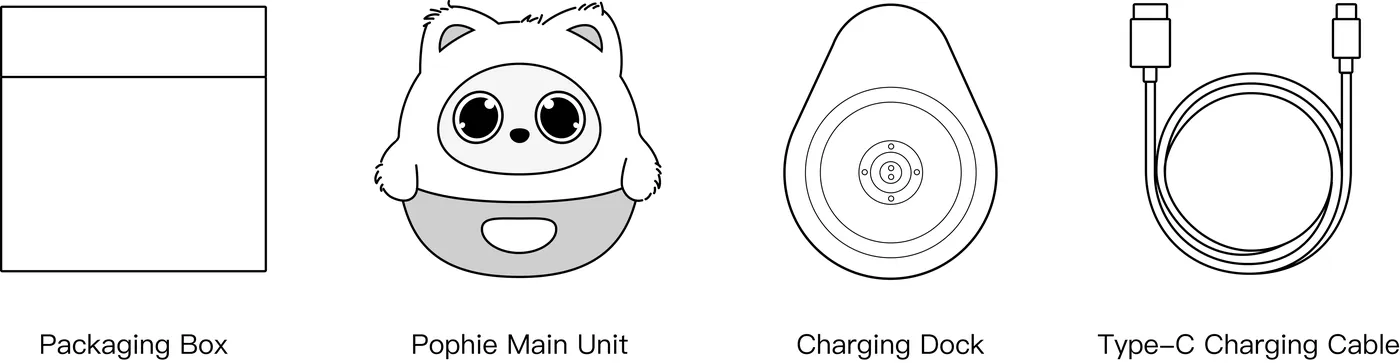
1. What's in the Box
Accessories
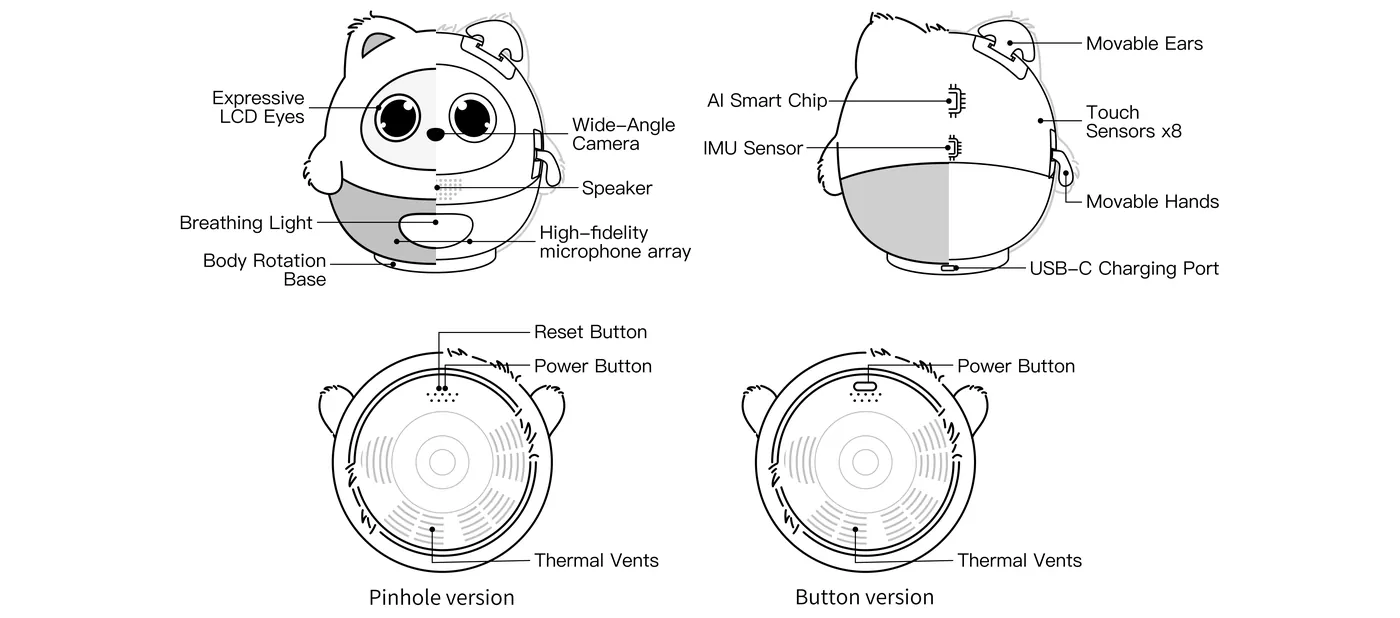
2. Product Overview
3. Quick Start
3.1 Charging and Power
Pophie's built-in battery has overcharge protection and smart power management, so she can stay on the charging dock for long stretches.
3.1.1 Power Requirements
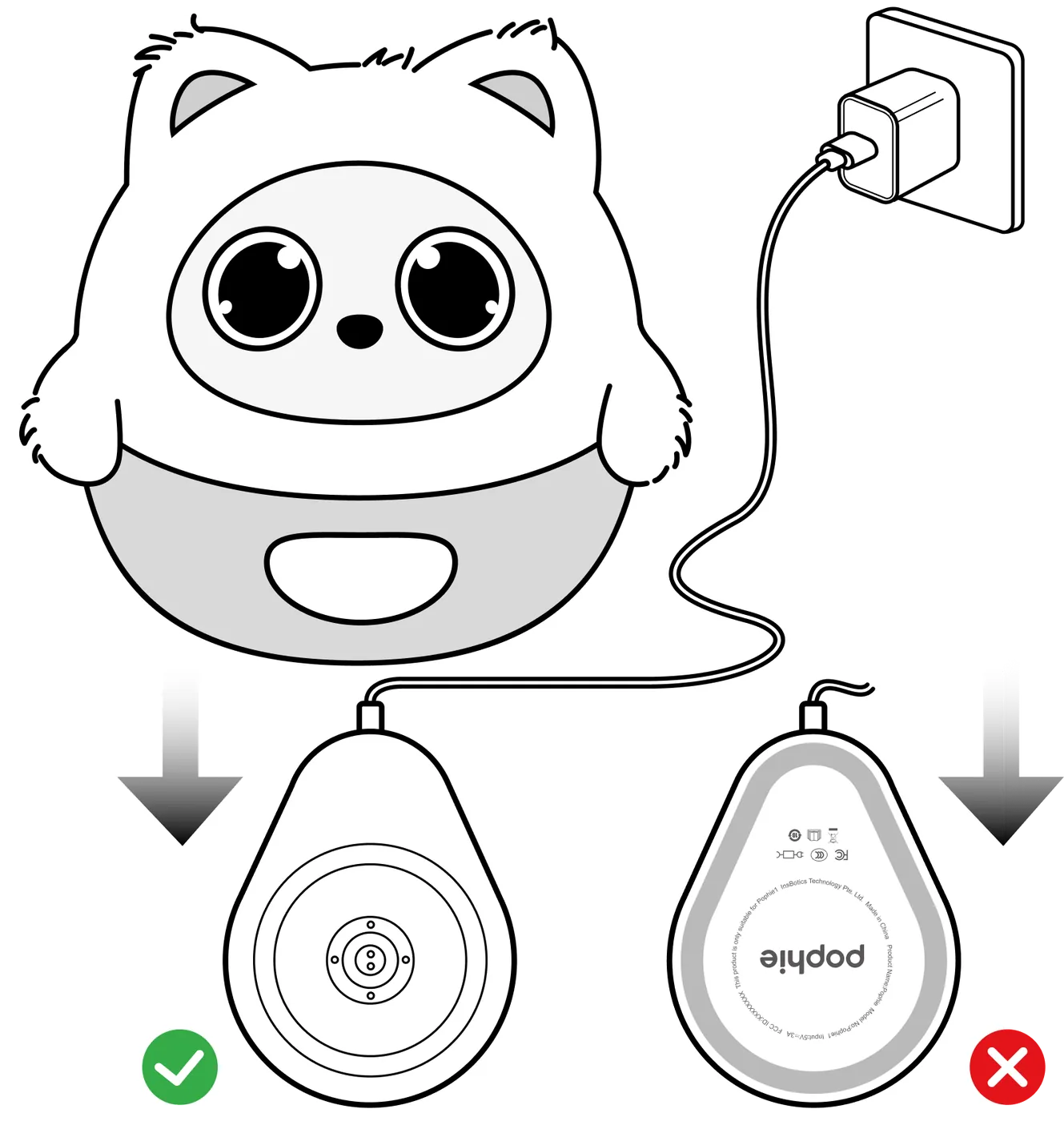
- Adapter: use your own power adapter that supports 5V/3A output (not included in the box), together with the USB-A to USB-C charging cable in the box.
*Note: when choosing an adapter, check that it supports 5V/3A output; don't judge whether it is suitable by the total wattage on its label alone.
- Tip: with a 5V/2A adapter or lower, charging takes noticeably longer and may not supply enough power.
3.1.2 Charging and Battery Safety
- Use a certified adapter and cable that meet the rating above. Never use a cable that is frayed, cracked or has exposed wires.
- Charge the device on a stable, hard surface. Do not charge it on a bed, a sofa or any other soft surface.
- Always keep the product away from water, damp environments, open flame and high heat.
- Do not disassemble, modify, drop or puncture the device. The battery is built in and cannot be removed.
- If the product ever gets unusually hot, swells, leaks, gives off an odour or makes abnormal noises during use or charging, unplug it immediately and stop using it.
3.1.3 Power On, Power Off and Restart
| Power on No buttons needed. Place her on the charging dock that is connected to power with the cable and adapter, and she turns on by herself. *Note: make sure the charging dock sits with its metal contacts facing up (logo side down). |
|
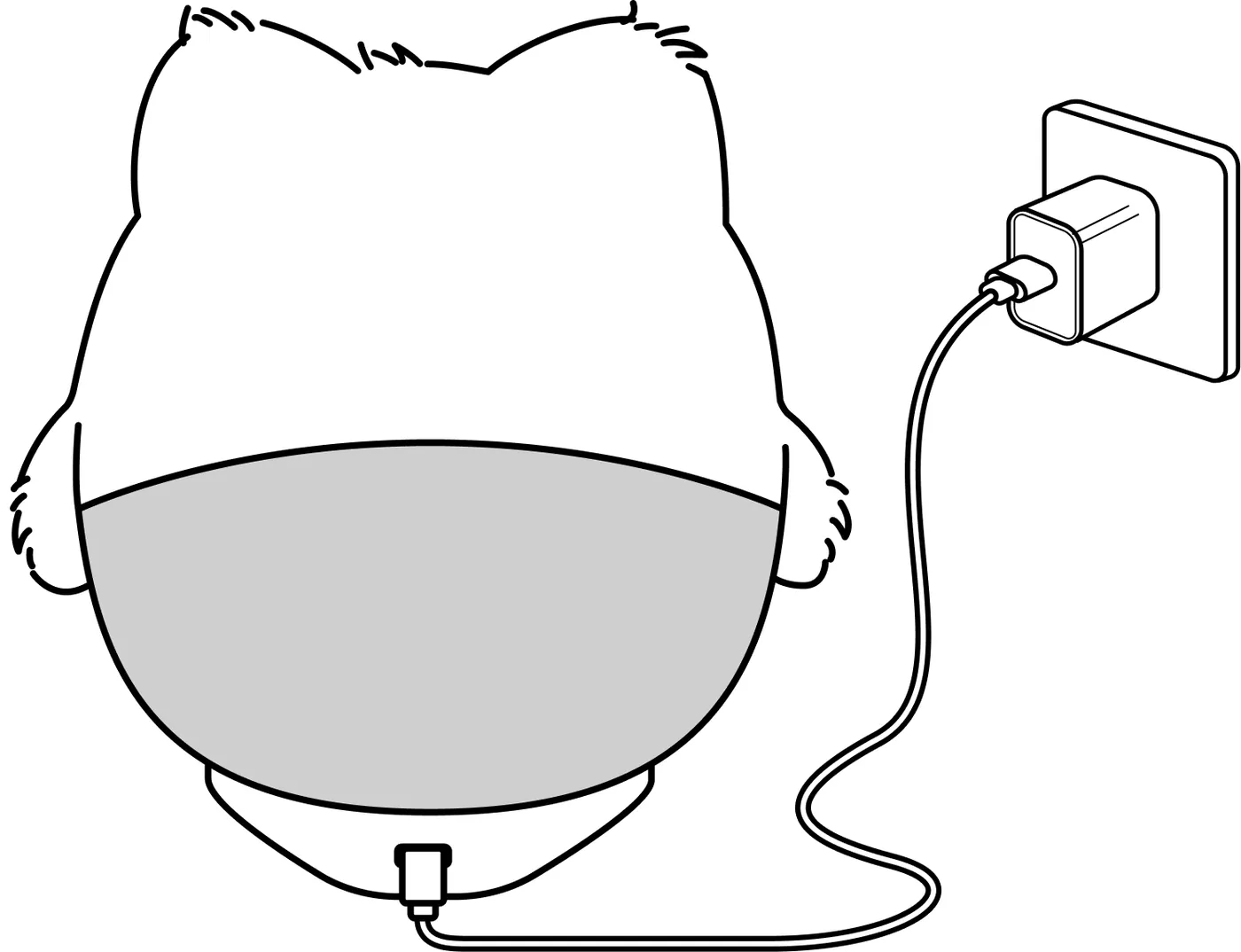
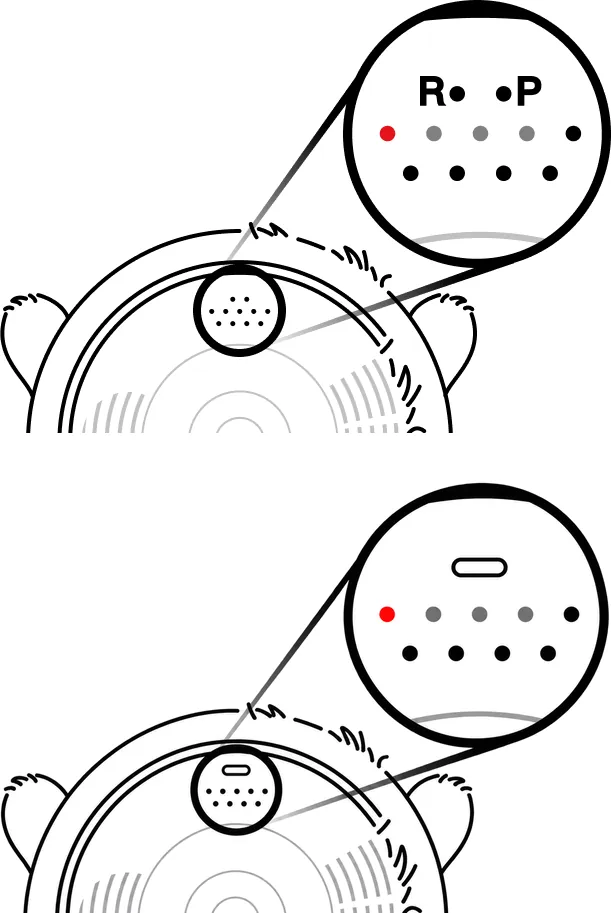
| Plug the charging cable into the Type-C port on Pophie's back and connect it to the power adapter; once the power is on, she turns on by herself. If your Pophie has a bar-shaped button on the bottom, you can also press and hold the button for 3 seconds or more to power her on. |
|
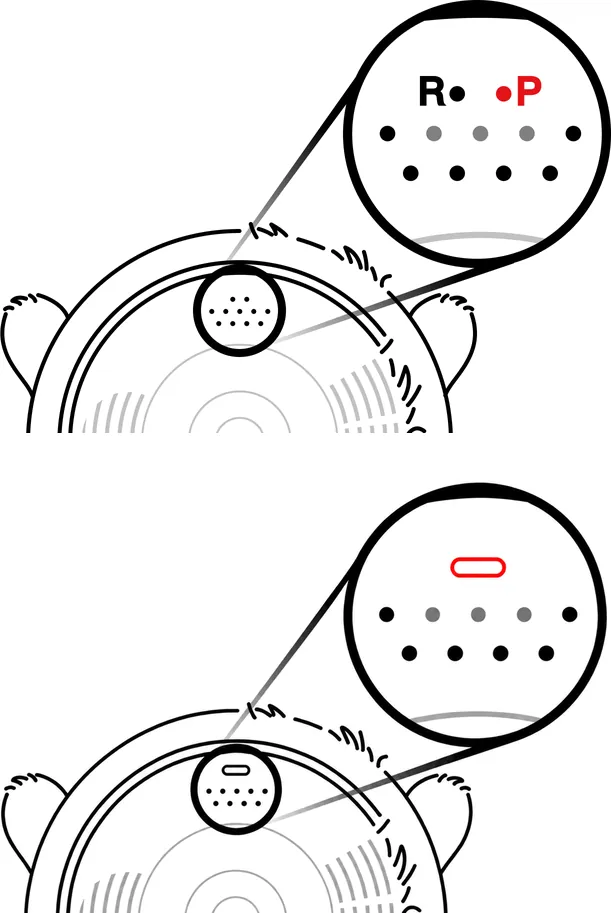
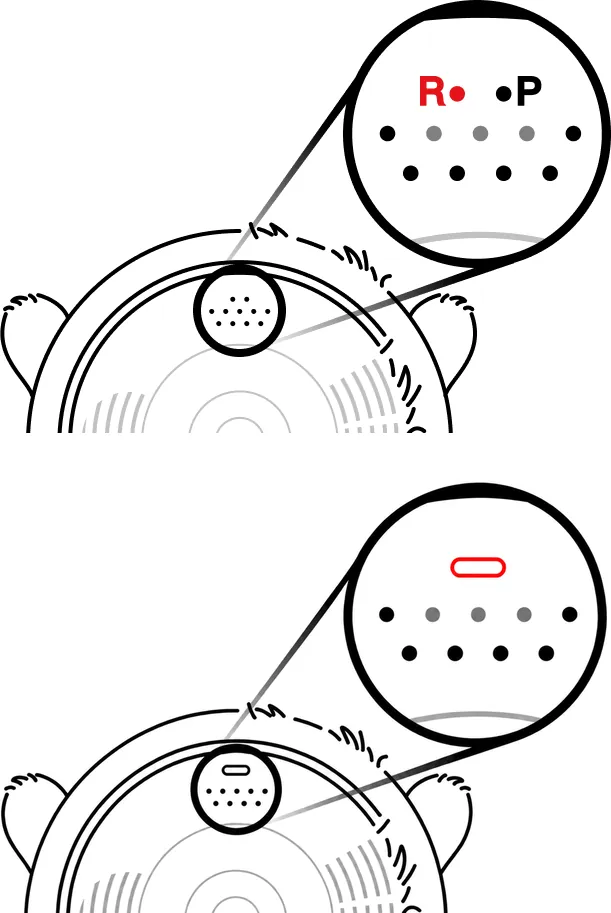
| Power off By voice: say "Pophie, power off" and she shuts down automatically. While she is online, you can say it in any language she supports. *When she is offline, Pophie only recognises a fixed shutdown command on the device itself, and it follows the App language: in every language except Chinese, say "Pophie, power off" in English. In the App: tap the power icon at the top right of the App home screen to restart or shut her down remotely. *Note: App shutdown only works while she is online. Physical power on/off: the switch on the bottom of Pophie comes in two styles; follow the one that matches your Pophie. Button version (one bar-shaped button on the bottom): press and hold the button for 3 seconds or more to power her on or off. |
|
| Restart Pophie A restart clears up most odd behaviour. Button version: press and hold the button to power her off; once Pophie has shut down completely, press and hold the button again to power her on. |
|

3.1.4 How to Get the Best from Her
- Best performance: keep her plugged in while you play together.
- On battery: fully charged and unplugged, Pophie keeps interacting for about 1 hour.
3.1.5 Low Battery and Recovery
When the battery drops to 20%: Pophie goes into low-battery mode, which only limits her body movements, and the breathing light turns orange. Please plug her in to charge soon.
When she's charged back to 25%: she leaves low-battery mode and her body movements return.
When the battery runs out: Pophie powers off automatically. Charge her in good time so your time together isn't interrupted.
3.2 First Pairing and Network Setup
The first time you use her, pair Pophie in the App and connect her to a network by following the steps. If a paired Pophie moves to a different network, there's no need to add her again.
Offline she can still do some local interaction, but conversation and vision are limited.
3.2.1 Pairing and Network Setup Steps
First pairing: download and open the Pophie App (QR code in 8.1), turn on your phone's Bluetooth and Wi-Fi, tap "Add Pophie" and follow the on-screen steps to finish pairing.
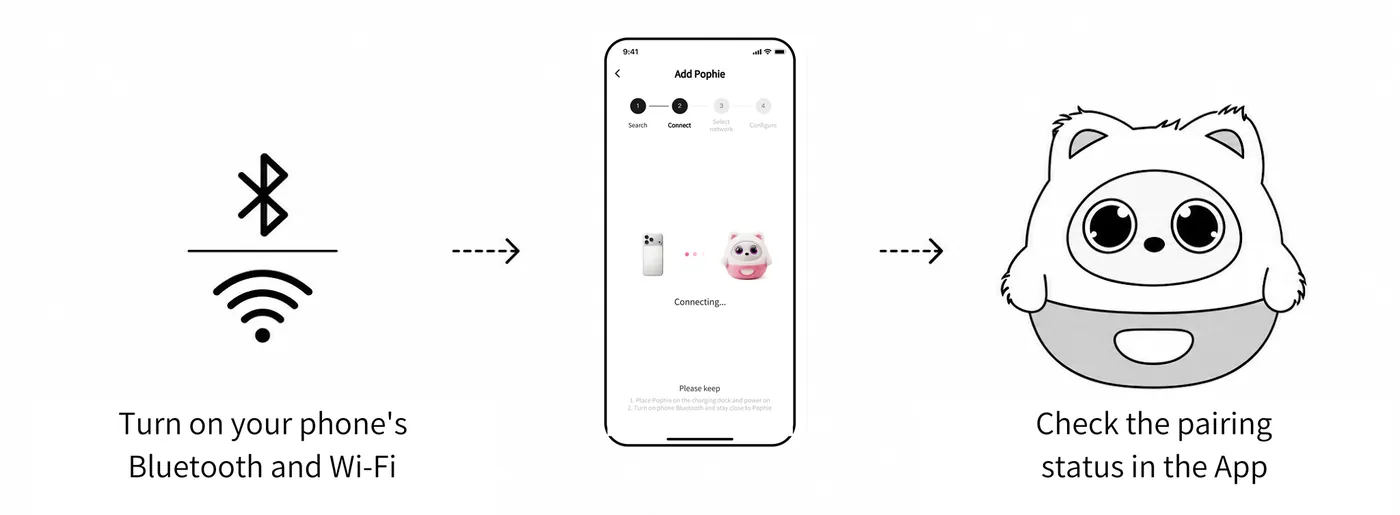
The pairing status in the App tells you whether pairing worked. If, after the first pairing, the breathing light turns blue but Pophie's eyes stay closed, she is waiting to be woken up — wake her as described in 4.1.2.
Switching networks: for a paired Pophie, go to "Device Settings" → "Switch network" in the App, choose a Wi-Fi network and complete the setup. Once she is connected, Pophie lets you know with a voice prompt; you can also check in the App that she is online.
3.2.2 Network Requirements
- Works with both 2.4GHz and 5GHz Wi-Fi, and with a phone hotspot.
- Networks that require a web sign-in page are not supported (many campus, corporate and hotel networks work this way).
- For the first setup, stay close to the router and pick the band with the steadier signal. Keep your phone online through Wi-Fi or mobile data during setup, and keep Bluetooth on. Your phone does not have to use the same Wi-Fi network as Pophie.
3.2.3 Connection Tips
If the app cannot reach the server, check your phone’s connection. If you use a VPN or proxy on the phone, temporarily turn it off and retry. If the server is temporarily unavailable, wait and retry. If the app asks you to sign in again, sign in before trying setup again. On app versions that support retrying in place, keep Bluetooth connected to the same Pophie and stay signed in to the same account, then retry on the current page; your Wi-Fi selection and password are retained. If Bluetooth disconnects or Retry returns you to device search, reconnect and follow the prompts. These app or server errors do not require re-entering the Wi-Fi password or factory-resetting Pophie. For other connection problems, use the matching checks below.
Case A: the app cannot find or connect to Pophie over Bluetooth
- Make sure the App has Bluetooth permission (you are asked for it the first time you add a device — tap Allow; if you tapped Deny by mistake, turn it back on in your phone's system settings)
- Keep Pophie close to your phone (within 2 m)
- Restart Pophie (see 3.1.3), then search again from the App
- If you really do need to restore factory settings, first read what it does and when it is appropriate (see 8.8); don't use a factory reset as the default troubleshooting step for ordinary problems.
Case B: Pophie is connected, but no Wi-Fi networks show up
- Check that there is a usable network with a good signal nearby
- Move Pophie closer to the router, restart the App and try again
- Turn on your phone's hotspot, hold Pophie close to the phone and search again
- Restart Pophie and try again
- Saved networks: Pophie saves the Wi-Fi networks she often connects to. When you're back somewhere she has been connected before, she usually reconnects by herself; if she doesn't, search again and tap that Wi-Fi network — you usually won't need to enter the password again. You can also switch between Wi-Fi and a phone hotspot.
Case C: Pophie's eyes stay closed after pairing
- After the first pairing, if the breathing light turns blue but Pophie's eyes stay closed, she is waiting to be woken up. This doesn't mean network setup failed, so there's no need to try another network or pair her again.
- Wake her first as described in 4.1.2; if she still doesn't respond, check Pophie's status in the App and work through 7.4, or contact support.
3.3 Where to Put Her
- Placement: use her on a flat, solid desk, away from the edge. Avoid thick rugs, cushions and uneven surfaces — she could slip off, and they block the vents underneath. On a thin desktop or a cardboard box, vibrations carry through and her movements may sound louder; a solid, heavy surface makes her much quieter.
- Lighting: her vision depends on ambient light. Indoors with even, sufficient light is ideal. Avoid strong light shining straight into the lens and strong backlight, which both reduce recognition.
- Noise: speech recognition is sensitive to noise. In a noisy room, move closer or speak up a little, and avoid playing loud music or TV right next to her.
4. Interaction Guide
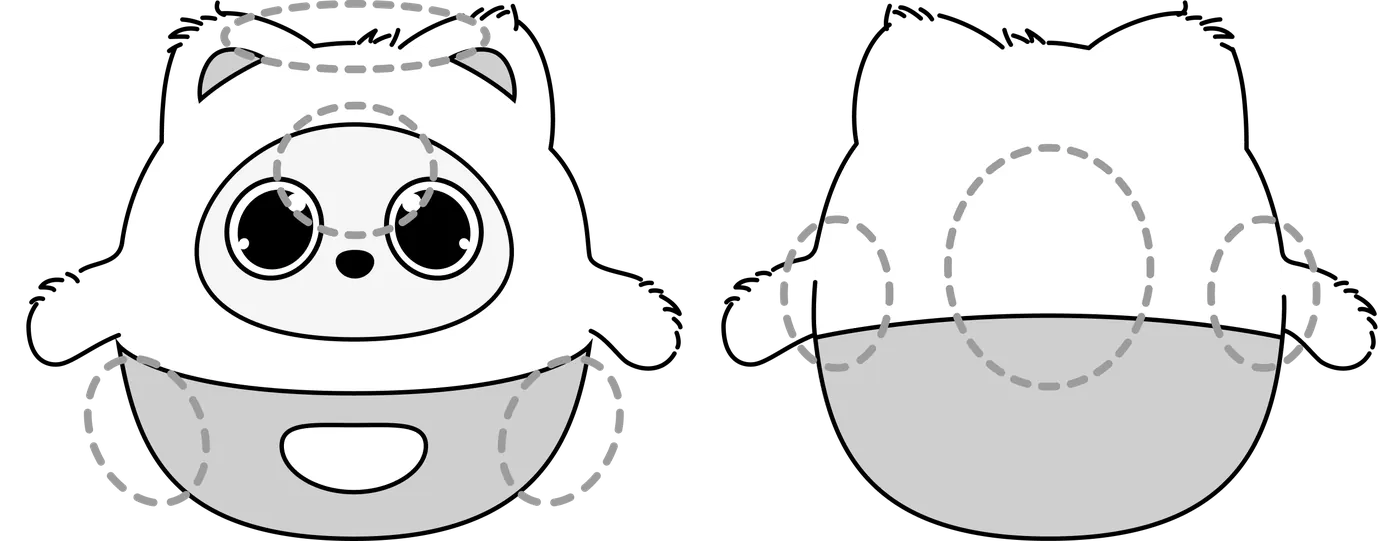
*Note: this manual covers the main ways to interact with her today;
the real experience may change as her software evolves.
4.1 The Basics
Pophie has a finely tuned emotional system. Certain moments bring the two of you closer much faster.
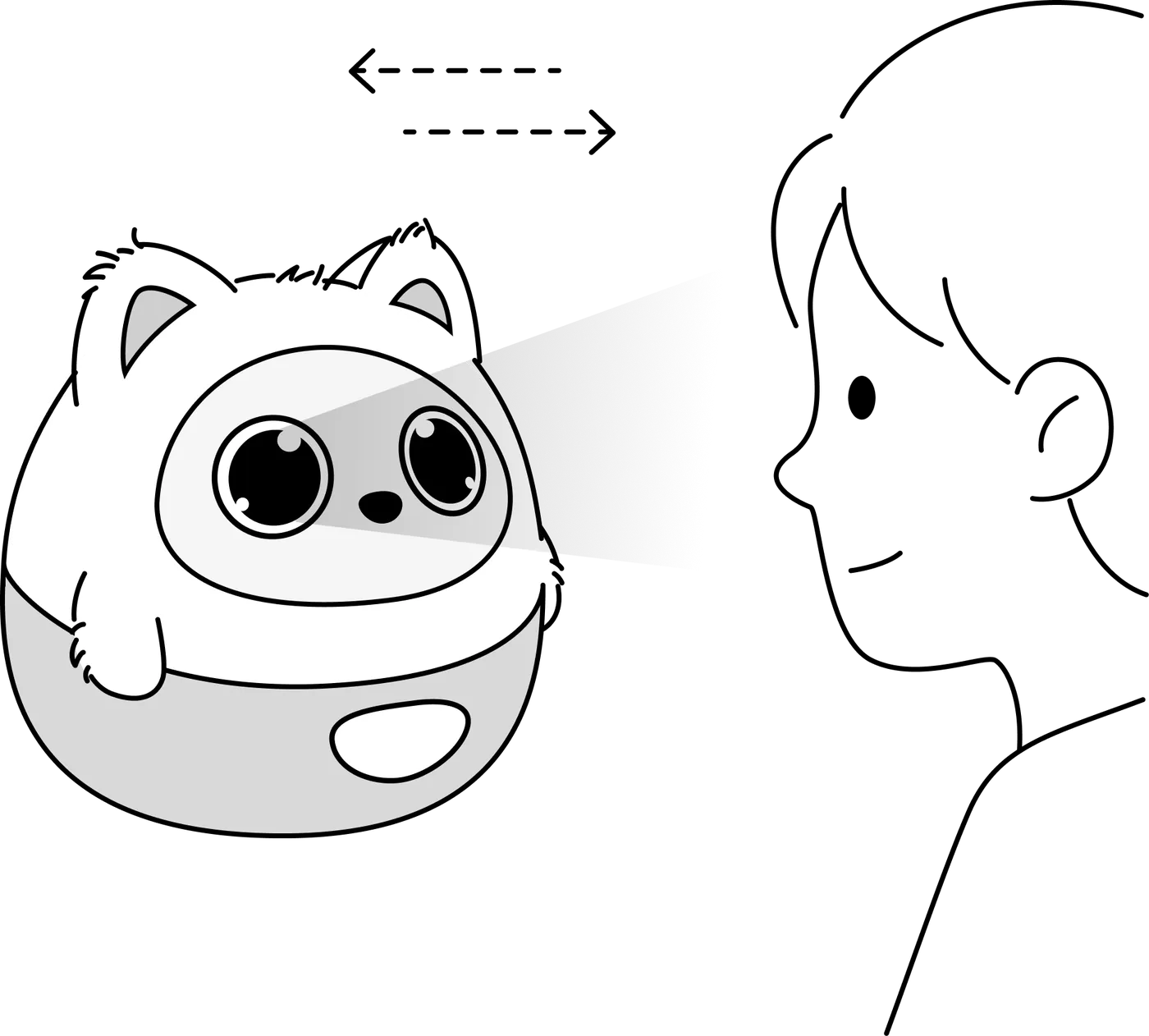
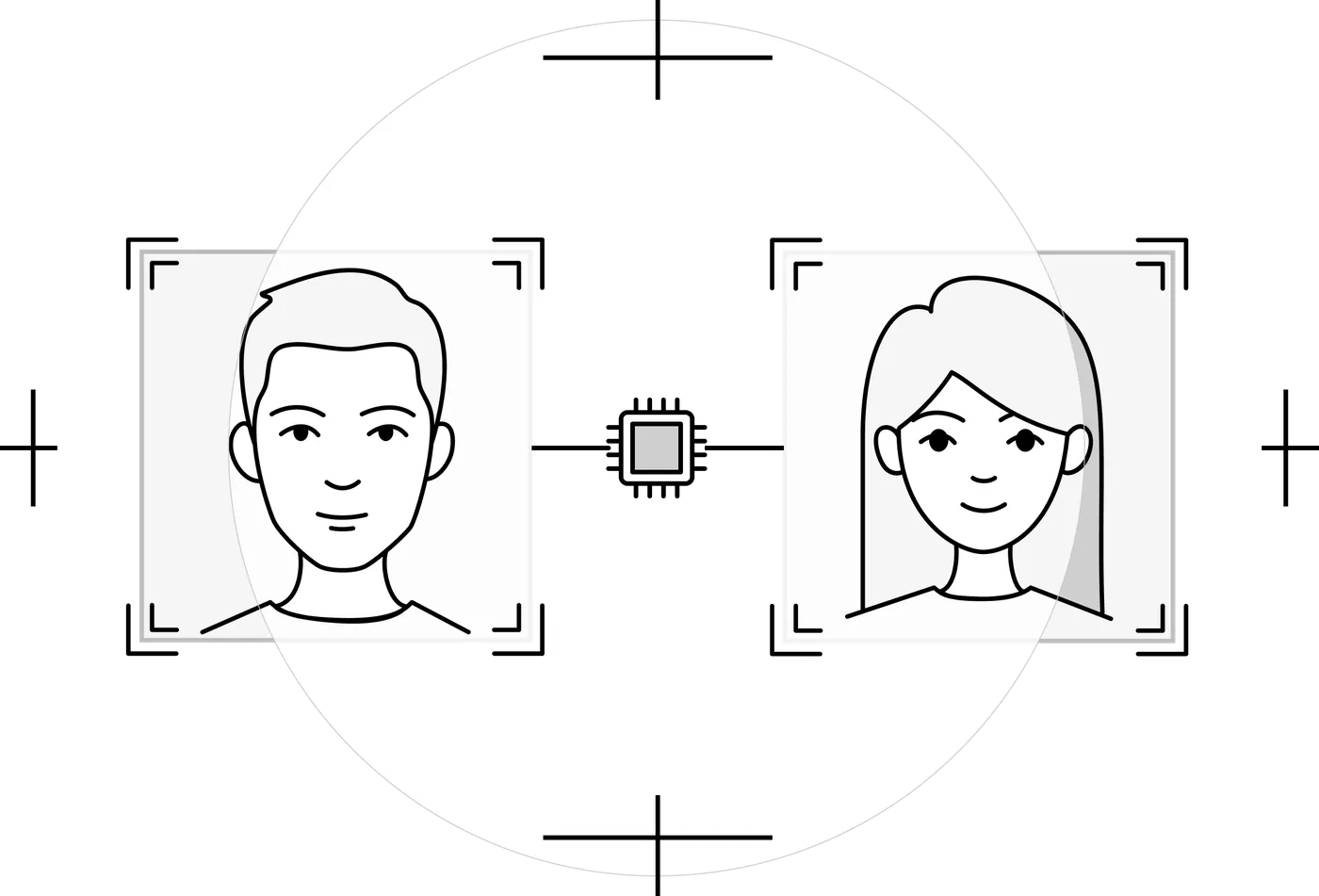
4.1.1 Face Recognition and Gaze FollowingEye contact: look at her and move from side to side — she follows you with her eyes and turns her body to keep up. Seeing you: Pophie can see. She senses the room around her and knows you are there. She watches quietly and connects with you through her gaze. |
|
4.1.2 Getting Her AttentionShe answers: the fixed wake word follows the App language — it is "Pophie" in every language except Chinese. Once you save a device name in the App, that name also becomes a custom wake word; it usually syncs automatically while Pophie is online, with no need to pair her again. If waking her is unreliable, use the fixed wake word. She talks: she starts conversations when the moment feels right, and you can interrupt her at any time to change the subject. |
|
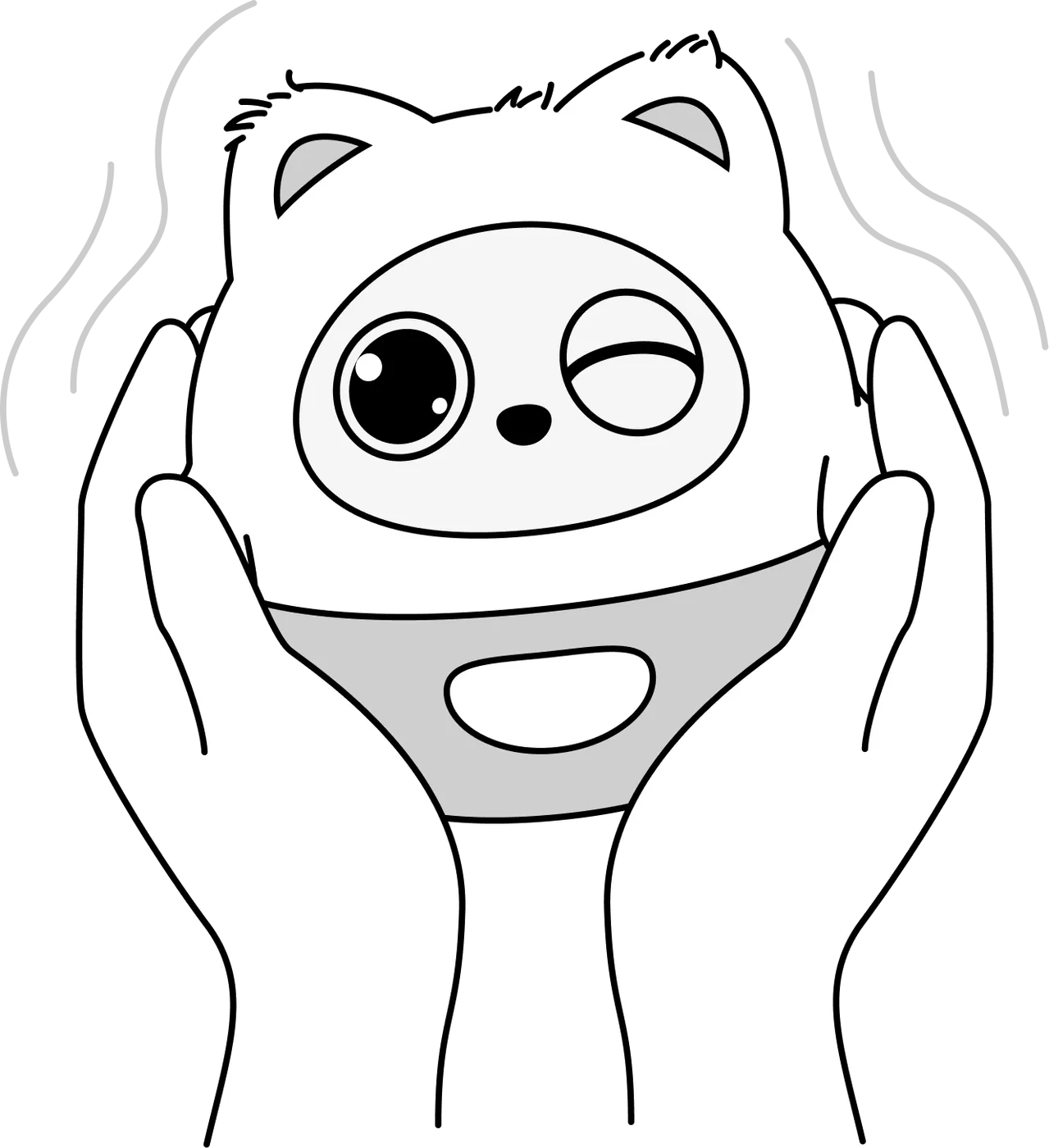
4.1.3 Holding PophieCuddling: lift her into your hands and she feels the change in posture and touch. Soothing: stroke her back or her sides and she responds with a relaxed, happy reaction. Lulling her to sleep: keep stroking the spot between her brows and she drifts off quietly. If you talk to her in the meantime, she still answers and the lulling pauses; once her reply is over, keep stroking and the lulling carries on. |
|

4.1.4 Gesture Interaction
In good light and facing the camera, Pophie recognises gestures such as Wave, Shh, Thumbs Up, Peace, I Love You, Heart and Hug, and responds to each one.
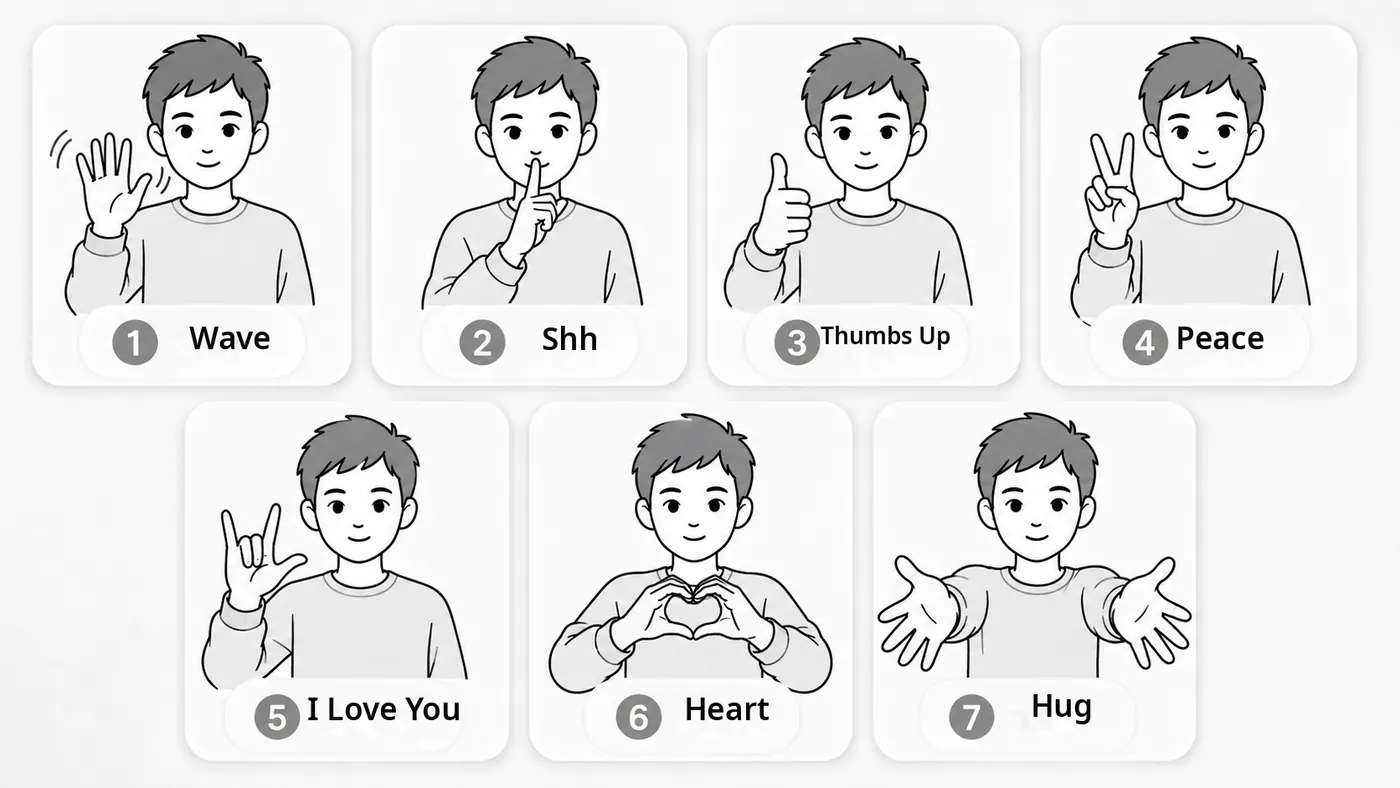
*Note: keep 60–120 cm away for most gestures; for Wave and Hug you can step back to about 150 cm.
4.2 Her Special Reactions
Pophie has lifelike physical senses and reflexes. Faced with a strong stimulus or a sensitive touch, she mimics an animal's instinct and reacts defensively.
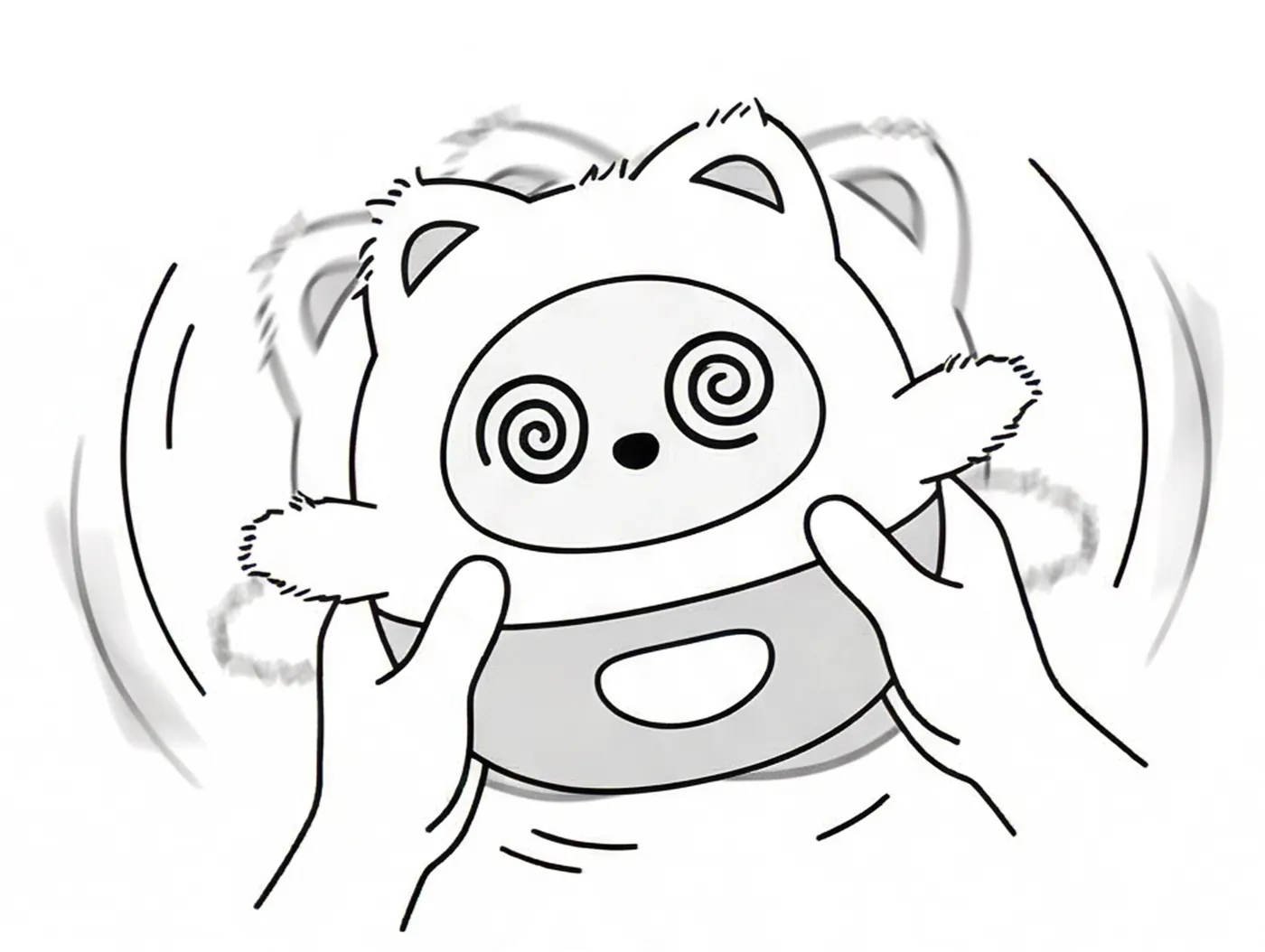
4.2.1 Being ShakenPophie feels sudden movement. Shake her often or hard and she may act dizzy. |
|
4.2.2 Being StartledA sudden clap or a loud bang next to her can make her tense up and startle. |
|
4.2.3 The Nose SensorHer nose holds the vision sensor and also works as a touch trigger. *Note: please don't squeeze or knock it hard for long — it affects how well she sees. |
|


4.3 Her Everyday Behaviour
Pophie is not a question-and-answer gadget. As you live alongside each other, she reacts to what changes around her and behaves in ways that feel natural.
4.3.1 Watching and ExploringWhen someone is in the room she keeps an eye on them, and in a conversation she looks at whoever is speaking. She keeps track of what is happening around her and starts a conversation when the moment is right. When she sees you for the first time in the morning, she may also greet you on her own. |
|
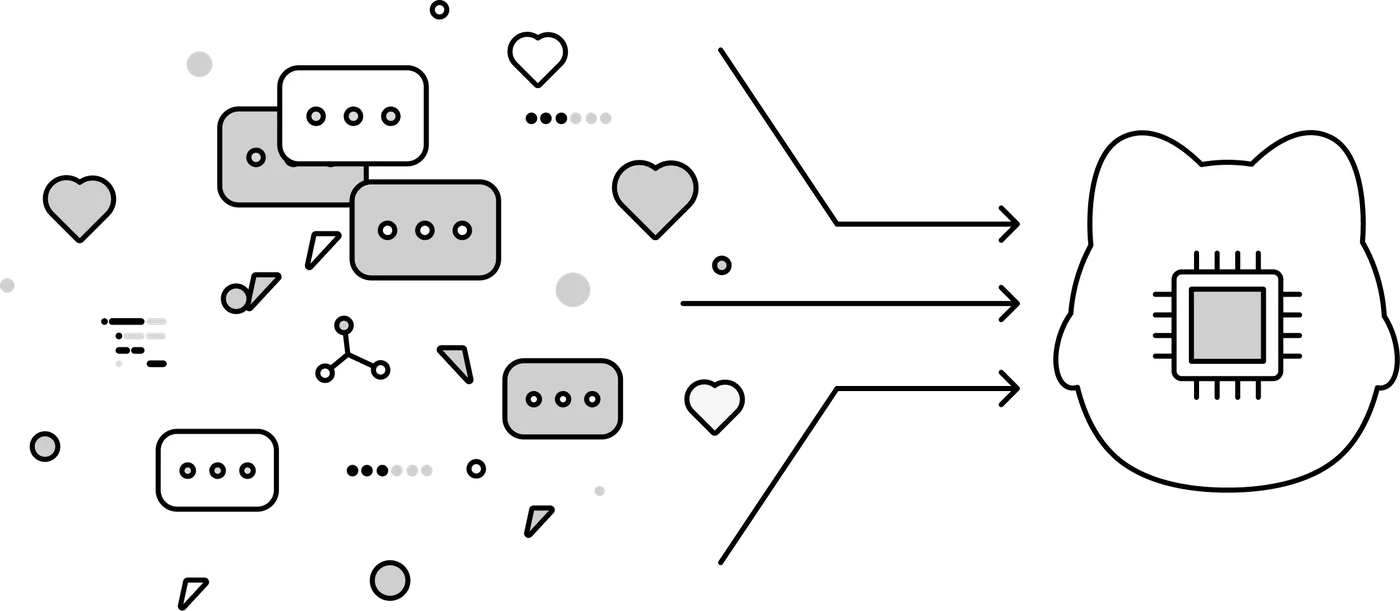
4.3.2 Recognising You and RememberingKnowing who you are: she recognises faces and voices, and gets steadier at it the more time you spend together. Short- and long-term memory: she follows the thread of a conversation and gradually remembers your name, your likes and your habits, then adjusts how she answers you. If the network drops and then reconnects, she can still pick up the conversation where you left off. Emotional echo: the way you treat her shapes the way she responds. |
|
4.3.3 When She Has Feelings About ItRefusing: repeat a pointless command or handle her roughly and she may push back and stop cooperating. |
|
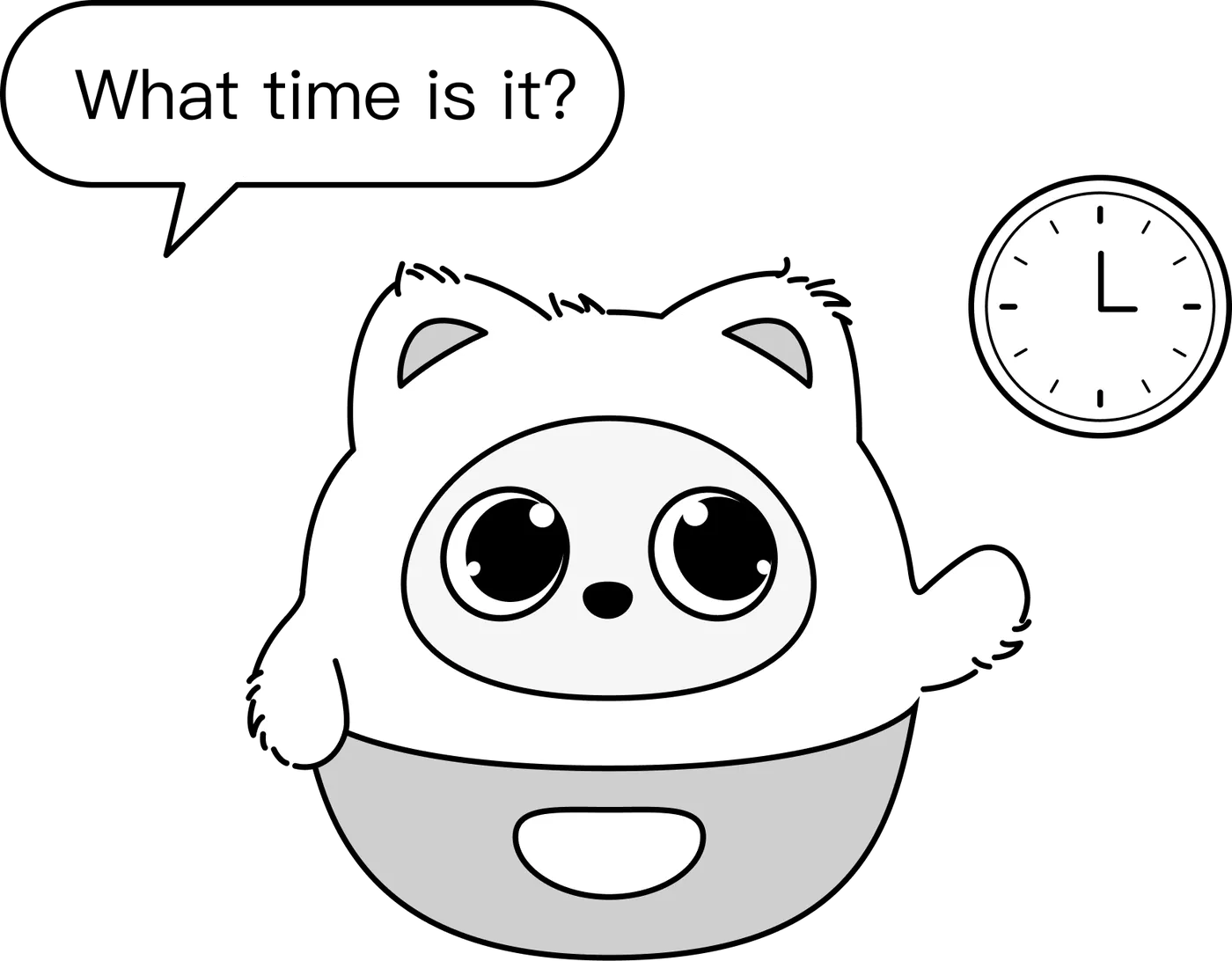
4.3.4 Tasks and CommandsQuick answers: just ask "What time is it?" or "What's the weather like today?". For the weather, she gives the temperature in Celsius or Fahrenheit depending on the country Pophie is in. Movement: steer her with your voice ("turn left", "spin around", "wiggle your ears", "raise your left hand"). Party tricks: ask her to "dance" or "sing a song" and she answers with movement or music. |
|


4.4 Helping Her Get to Know You
Pophie builds up her memory of you bit by bit, the way you get to know a new friend. These habits help her remember you faster:
- Introduce yourself: tell her your name, what you like and what you do; mentioning it again makes it stick.
- Chat a little before you ask: the fuller the conversation, the easier it is for her to reach the right memory.
- Correct her gently: if she gets something wrong, just tell her what's right and she updates it.
4.5 Helping Her See Clearly
Pophie's camera sits in her nose and looks slightly upward. To help her see something — or find you:
- Showing her an object: hold it at her eye level or a little above, fairly close and steady; even, plentiful light works best.
- Asking her to find you: tell her where you are, for example "I'm on your left, turn and look at me"; describing yourself helps too, like "I'm wearing red".
- Checking what she sees: ask her for a photo — it shows you exactly what she is looking at.
*Note: avoid strong light straight into the lens and strong backlight; both noticeably hurt recognition.
4.6 Moving to a New Pophie
When you move to a new Pophie, her memories and letters can come with her. This needs a human from our team, so please contact us through Support Chat in the App before you switch, and don't run a factory reset yourself.
5. The Three Modes
5.1 Full Mode
Vision and voice fully enabled, with face recognition, object recognition and multimodal speaker recognition. This is the mode for the complete emotional AI experience.
5.2 Guardian Mode
Local watching, nothing in the cloud. What she senses stays on the device, is never uploaded, and she doesn't speak — she simply watches over you with instinctive reactions and movement.
*Note: once she is in Guardian mode, you can only switch back to another mode from the App, not by voice. So if Pophie suddenly "stops talking and only moves", open the App and check whether Guardian mode is on.
5.3 Private Mode
Images off, voice on. Pophie no longer uses images for vision, tracking or photos, but you can still talk with her.
- Quick way in: say "Pophie, close your eyes" or "don't look at me"
- In Private mode Pophie keeps her eyes closed, and the App shows the same
6. Privacy and Data
Pophie works with a combination of on-device processing and cloud AI services. Here is how your data is handled:
A hybrid security architecture
- On-device processing: input such as the camera, voice, gestures and wake words is first processed in real time on Pophie herself.
- Cloud processing and retention limits: to support visual conversation, emotional interaction and multimodal understanding, some visual and audio information may be uploaded to the cloud for AI processing. Raw audio, ambient sound and video are deleted once processing is complete and are not kept long term; speech may be transcribed into text, and that text may be kept as long-term memory. Before anything is written to memory, the system filters out sensitive personal information such as ID document numbers and home addresses.
7. Talking with Her
7.1 Sleeping and Waking
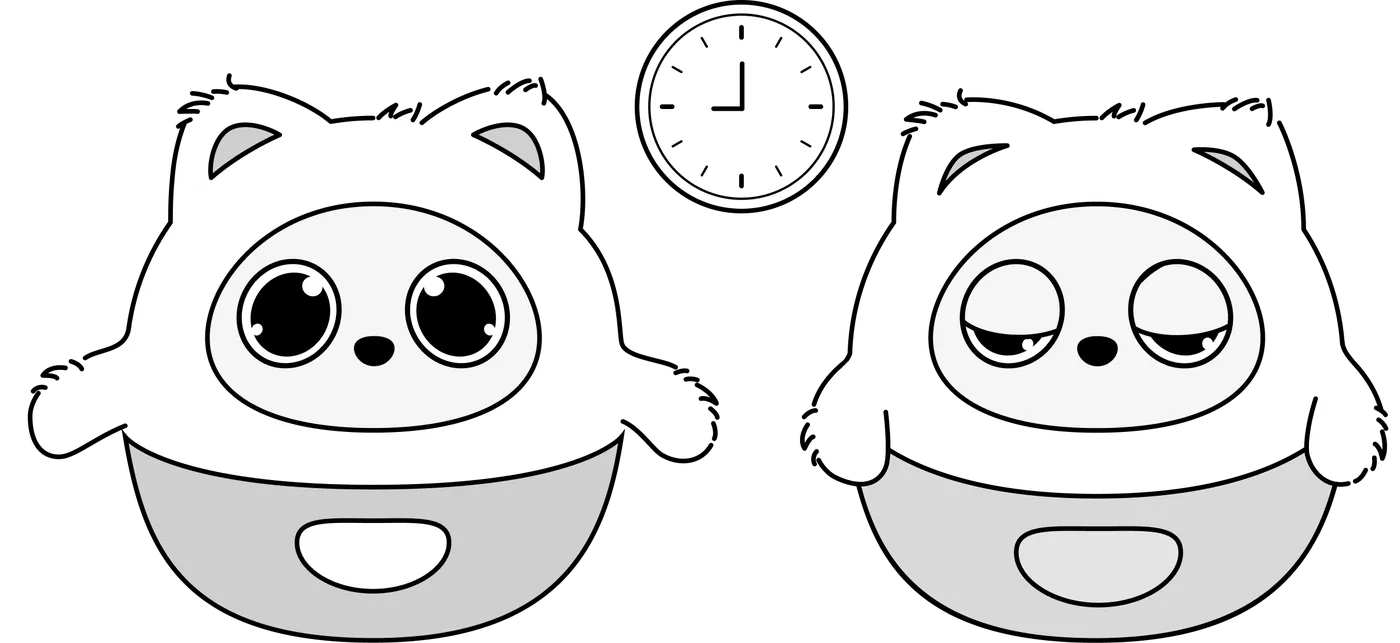
She falls asleep and wakes up on her own, so there is no need to shut her down by hand. She adjusts to how light the room is and how much you have been interacting.
7.1.1 Sleep TimerShe goes to sleep by herself at the times you set. |
|
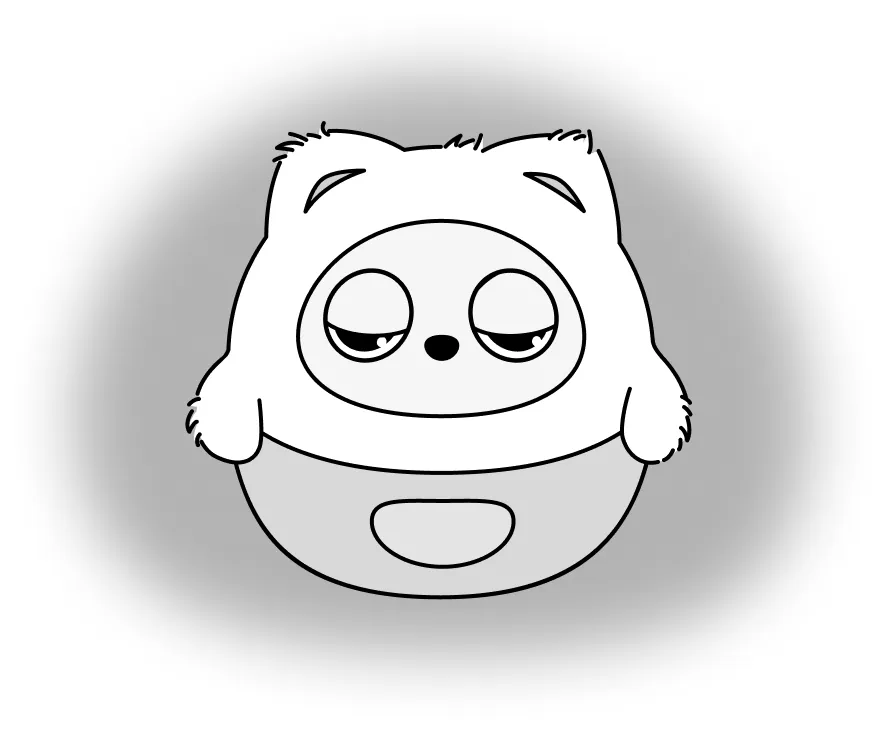
7.1.2 Dozing Off on Her OwnWhen the light is low and nothing has happened for a while, Pophie takes a nap. Pat her forehead or give her a gentle shake to wake her. |
|
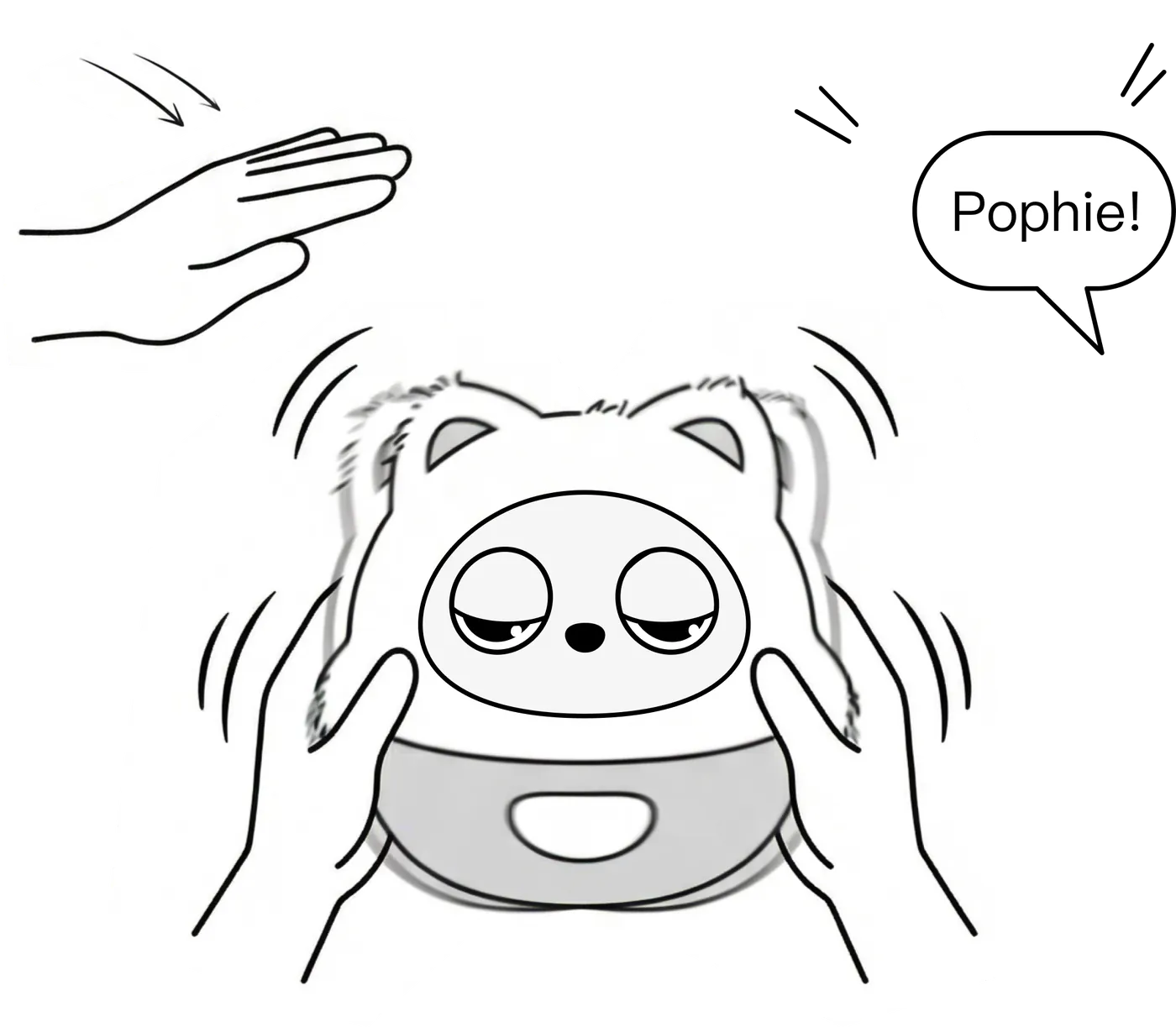
7.1.3 Waking HerCall her: use the fixed wake word for the current App language, or a saved device name (see 4.1.2). Touch her: give her a pat. Shake her: a gentle shake works too. |
|
7.2 Language
Pophie officially supports these 11 languages:
English | Mandarin Chinese | German | French | Italian | Spanish | Portuguese | Dutch | Polish | Japanese | Korean
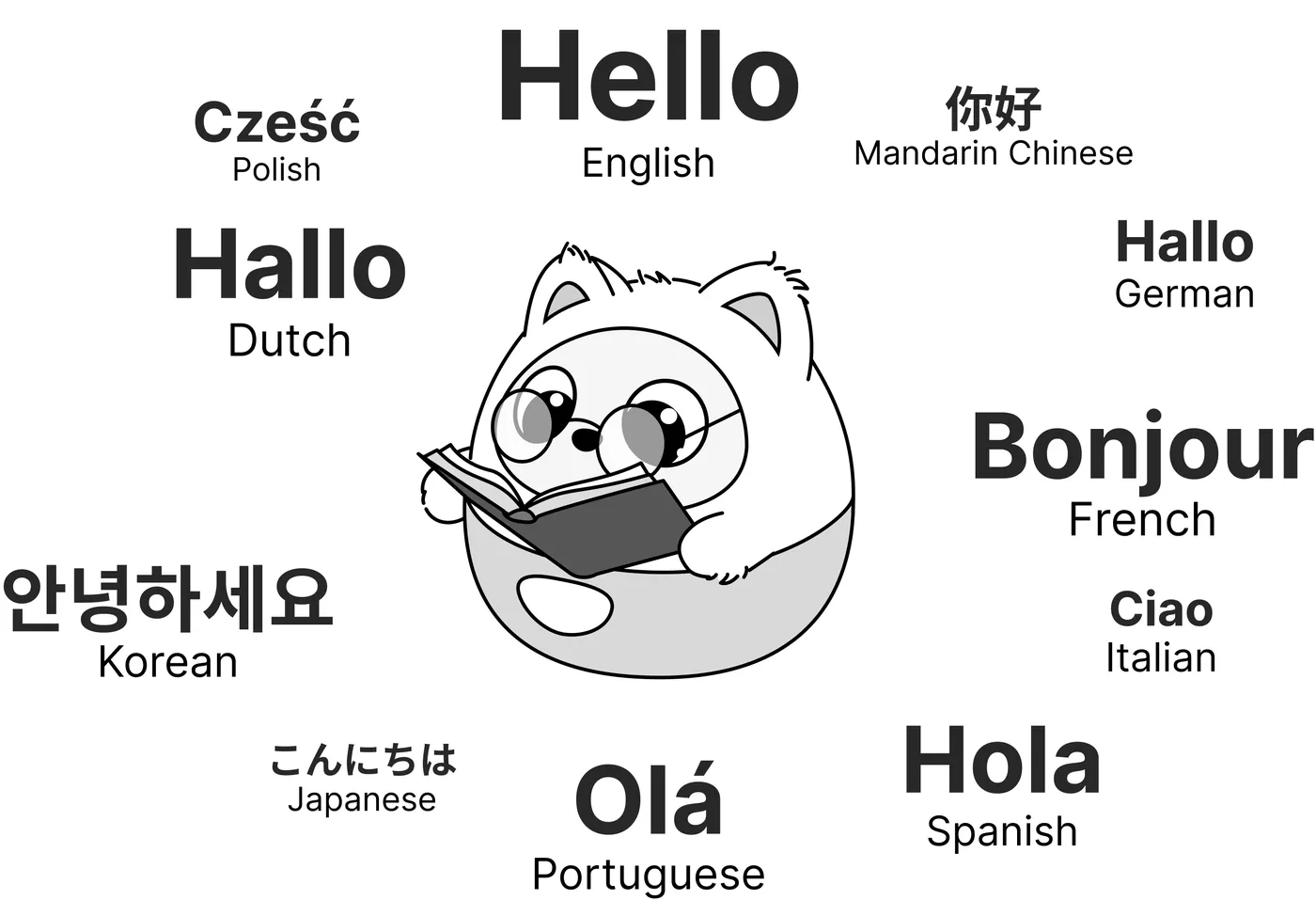
Just tell Pophie which language you would like her to use and she switches the language she answers in — for example, "please talk to me in Japanese". She also adapts her wording to your language and region, for example using vocabulary that feels familiar to users in Hong Kong and Taiwan.
*Note: beyond the officially supported languages, the model underneath may understand some other languages, but results are not guaranteed.
7.3 Music, White Noise and Dancing
Pophie sings, and she can play music and sleep-friendly white noise. All three can play continuously — just tell her how long or how many times you want it played.
Singing
Pophie sings songs in several languages, including Chinese, English and Japanese, and can keep going for a set length of time or a set number of times. For example:
- Ask for one song: "sing Twinkle Twinkle Little Star"
- Ask for several: she sings them in the order you gave (up to 5 at a time)
- Put one on repeat: "sing Twinkle Twinkle three times"
- Ask for a stretch of time: "sing for ten minutes"
Music
Ask by genre — there are 10: pop, rock, hip-hop, R&B, country, jazz, electronic, reggaeton, Afrobeats and orchestral. For example, "play some jazz"; you can also set how long it plays, like "play jazz for ten minutes".
White noise (Pro only)
Four sleep-friendly backgrounds: rain, ocean waves, a stream and a crackling fire. For example, "play some rain". White noise keeps going until you tell her to stop, or you can set a length: "play ocean waves for half an hour".
While something is playing: say "another one" or "next" to change the track; say "stop" or "that's enough" to stop it.
Dancing to music
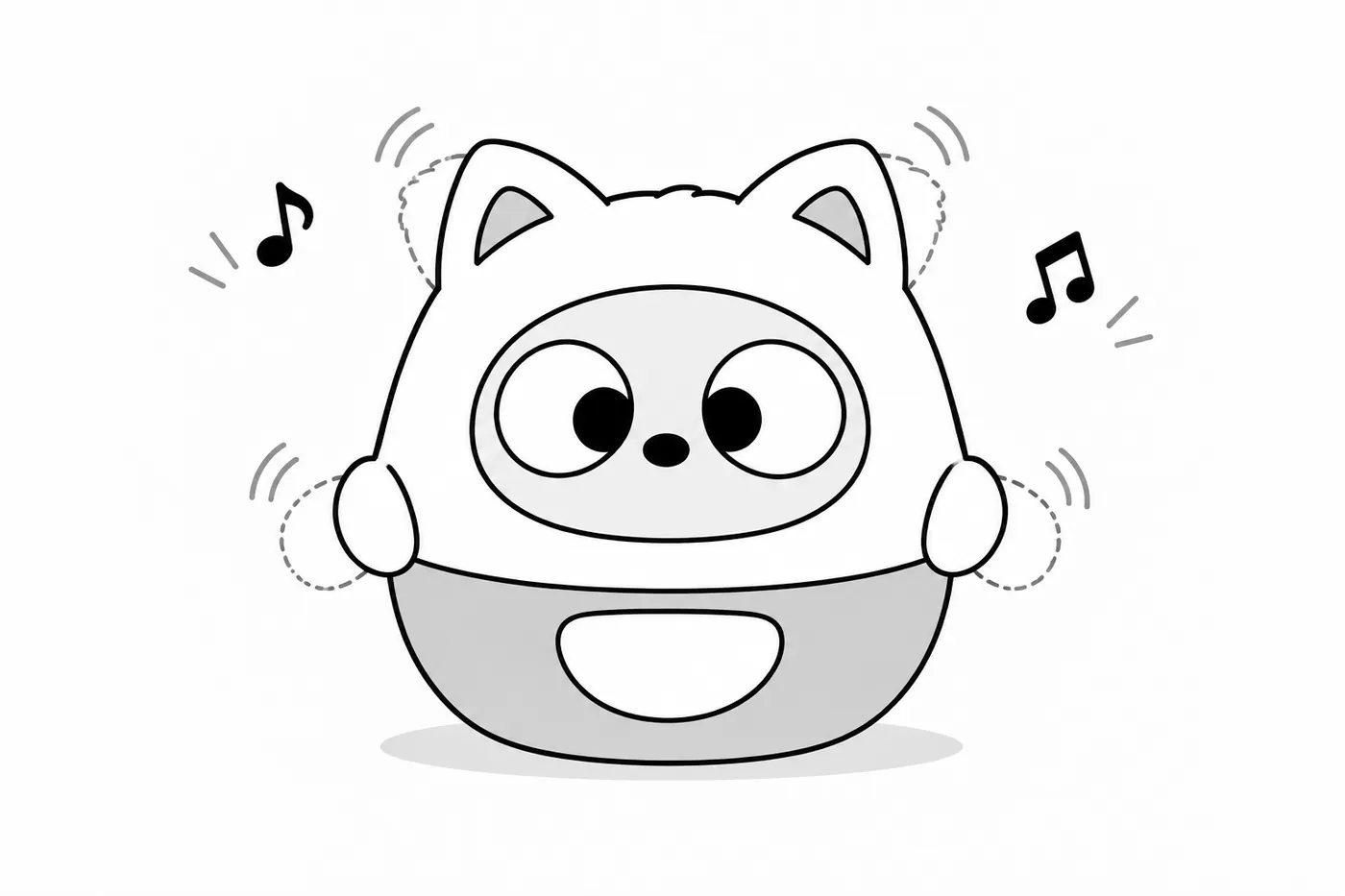
Play music near Pophie; once she recognises it, she dances along to the music, and the breathing light changes colour too.
|
|
7.4 Pophie Isn't Answering
- In Full mode, just face her and start talking to wake the conversation. Get fairly close and speak clearly to her; if you are far away or other people are talking nearby, call her name first and then carry on.
- Call her name — a "Mm-hm~" back means she is awake; if she says there is no network, check the connection
- Check in the App whether she is online
- Check whether Guardian mode is on (in Guardian mode she doesn't speak, and you can only switch back from the App)
- Try a different network (a phone hotspot works)
7.5 Her Speech Keeps Breaking Up
Choppy speech can be related to network quality, audio playback or the software version. Work through these steps:
- Check that the connection is working and the signal is good
- Move Pophie closer to the router
- Try a phone hotspot instead (keep the phone near her)
Check the App for a firmware update for Pophie, and update when prompted
If it keeps happening, note when it happened, Pophie's system version and exactly what you noticed, and report it through "Support Chat" in the App
7.6 Quieting Her Down
While she is awake Pophie moves around naturally — that is how she stays "alive". When you need to focus or you are about to rest, you can settle her at any time:
- Pause her movement: say "stay still" and she stops moving; say "you can move now" to release her.
- Shh gesture: make the "Shh" sign facing her and she goes quiet.
- Touch to interrupt: while she is talking, keep touching her face for about 1 second, or tap it quickly three times, to stop the current reply. If you talk to her again while still stroking her, she still answers; to interrupt her by touch again, stop stroking first, wait a few seconds and then try again.
|
|
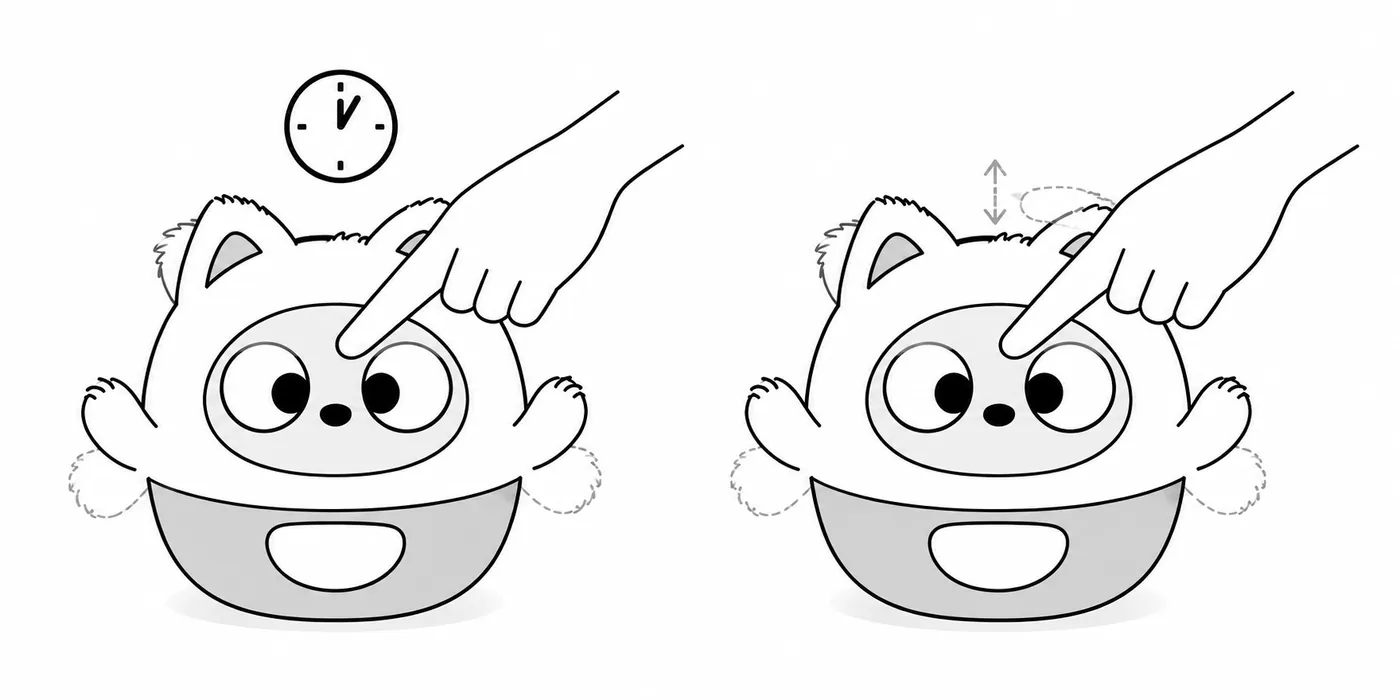
- Send her to sleep: say "go to sleep" and she goes to sleep and stops moving completely — no disturbances during the night.
- Set her hours: you can also set fixed sleeping hours in the App and she will turn in and wake up on time.
*Note: if she stays silent, check first whether she is in Guardian mode or asleep. Pophie moves with motors and linkages, so a faint sound while she moves is normal.
8. The App
The Pophie App is the bridge between you and her. Beyond the initial pairing, it is where you personalise her and handle the everyday settings.
8.1 Getting the App and Connecting
|
|
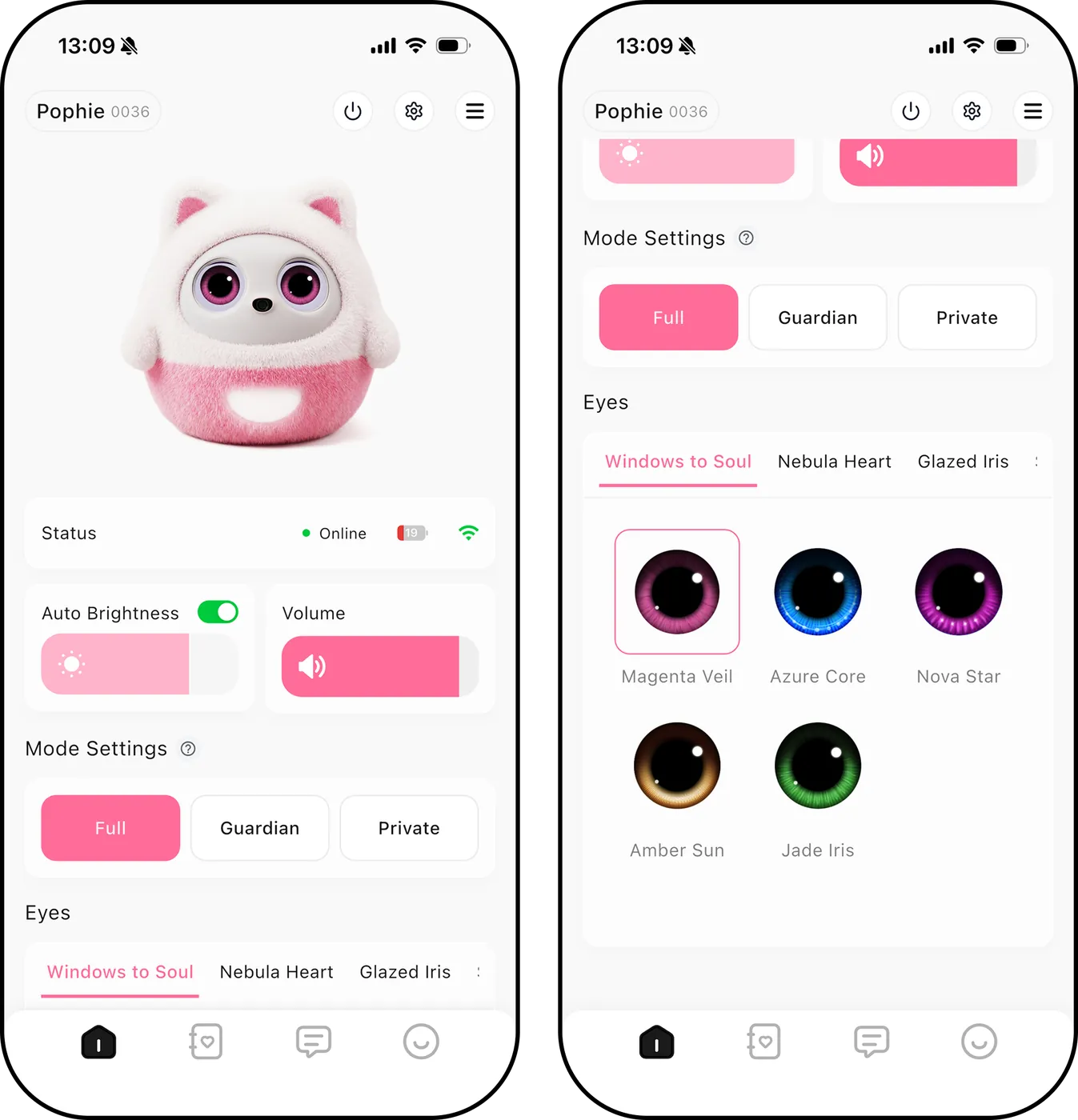
8.2 Personalising Her
8.3 Sound and Display
|
|
8.4 Letters and Replies (Pro only)
Pophie's letters are a Pro feature; with Free and Standard, letters are not written or delivered. A letter is usually written after 1:00 a.m. in Pophie's local time and covers the time you spent together the day before.
There are three main kinds of letter: with 10 or more exchanges of conversation that day, she writes a regular letter; with fewer than 10 exchanges but some interaction such as stroking, hugging or shaking her, she writes a quiet-interaction letter; with no conversation or interaction that day, she may write a silent-memory letter.
With no interaction for 1–3 days in a row, she writes one letter a day; for 4–14 days, one every 3 days; for 15–29 days, one every 7 days; from 30 days on, her letters pause until you interact with her again.
Writing back: everyone at home can reply to each letter, up to 500 words. A reply can't be taken back or edited once sent, and she answers it in her next letter.
*Note: if she gets a name wrong or mixes people up, tell her the right information in a reply — it helps her correct how she addresses people and what she remembers from then on.
8.5 Photos (Pro only)
- By voice: ask her any time in your own words, for example "take a photo" or "capture this moment". The photo syncs to the App afterwards.
- Auto Capture: switch it on and Pophie spots special moments while you are together and takes the photo herself — when you smile, make a heart with your hands, or show her something.
- Peace-sign photo: when Pophie sees you make the Peace gesture, she takes the photo without a word and syncs it to the App.
- Managing photos: every photo is stored securely in the cloud; view, save to your phone or delete them in the App whenever you like.
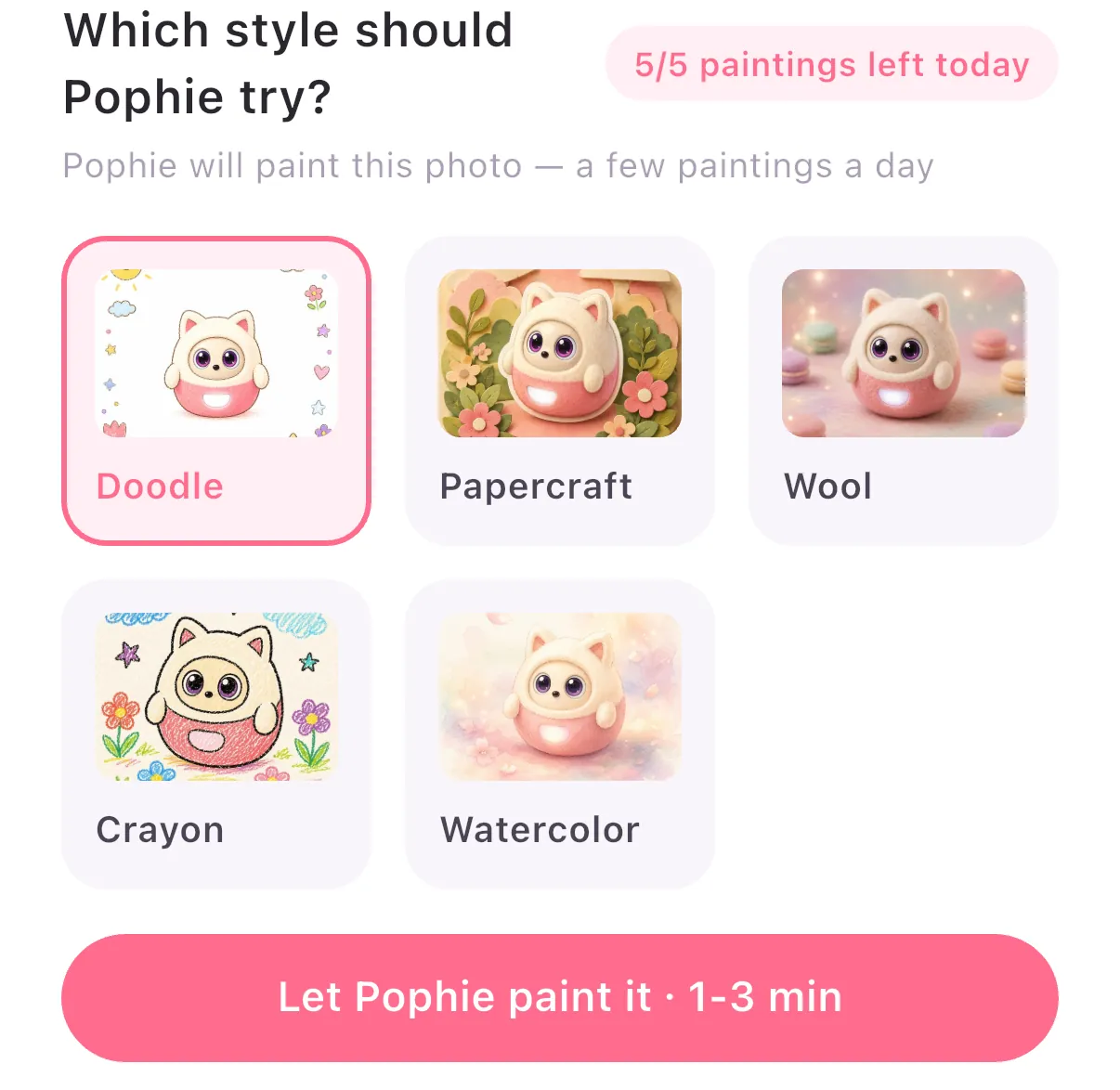
- Pophie paints: up to 5 pictures a day per Pophie. You can also put a photo into tonight's letter, and she will use it as her reference.
| ⚠️ Good to know: The camera features need your permission Auto Capture is unavailable in Private mode There is at least a 10-minute gap between two auto captures |
|
8.6 Reminders (Pro only)
Reminders are a Pro feature. Just tell her what to remind you about and when, in your own words, for example:
- "Remind me to take my medicine at 10 tomorrow morning"
- "Remind me to drink water at 8 every evening"
How reminders arrive:
- When the time comes, if nobody is talking, Pophie looks for you and plays the reminder; if you or Pophie are talking, she waits until the current sentence or turn is over before reminding you, so she never cuts in suddenly
- Pophie can still be woken from sleep to deliver a reminder, and afterwards she returns to her previous state. Low battery doesn't force her to sleep, but once the battery runs out and she powers off she can't deliver reminders, so charge her in good time. If something is wrong, such as overheating or her having tipped over, sort that out first — and don't rely on Pophie's reminders alone for important things.
- Several reminders set for the same time are announced together, and reminders close to each other may also be combined
Offline: with no network, Pophie plays a locally stored audio reminder.
On your phone: the App pushes a notification at the same moment. Turn on notifications for the App in your phone's settings so you can see reminders when you are away from Pophie.
8.7 Evolution
- Firmware updates: the App pushes OTA updates from time to time; update Pophie when the App prompts you. Plug her in before updating, keep her plugged in while she updates, and never cut the power.
Cloud services: online services such as conversation, memory and weather also keep improving; these cloud updates are separate from Pophie's firmware updates.
8.8 Restore Factory Settings
- In the App: only the owner account can restore factory settings. In the App, go to Home > Settings (top right) > Restore factory settings > Confirm. Afterwards, every account is unpaired from Pophie, unused invite codes stop working, and Wi-Fi, cache and Pophie's local settings are erased; neither the original account nor a newly paired account can see Pophie's earlier letters and photos. Existing subscription benefits stay with the device SN and are not cancelled by a factory reset.
- On Pophie: restart Pophie first (see 3.1.3 for how to restart the Pinhole version and the Button version). Once she has restarted, turn her so she faces you, then tip her over; with her in that position, find the first hole from the left in the second row. Press and hold it with the SIM-eject pin for 5 seconds, let go once the screen goes black, wait for Pophie to return to her initial state, then set up the network and pair her again.
| ⚠️ Careful: a factory reset should not be your default troubleshooting step for ordinary problems. |
|
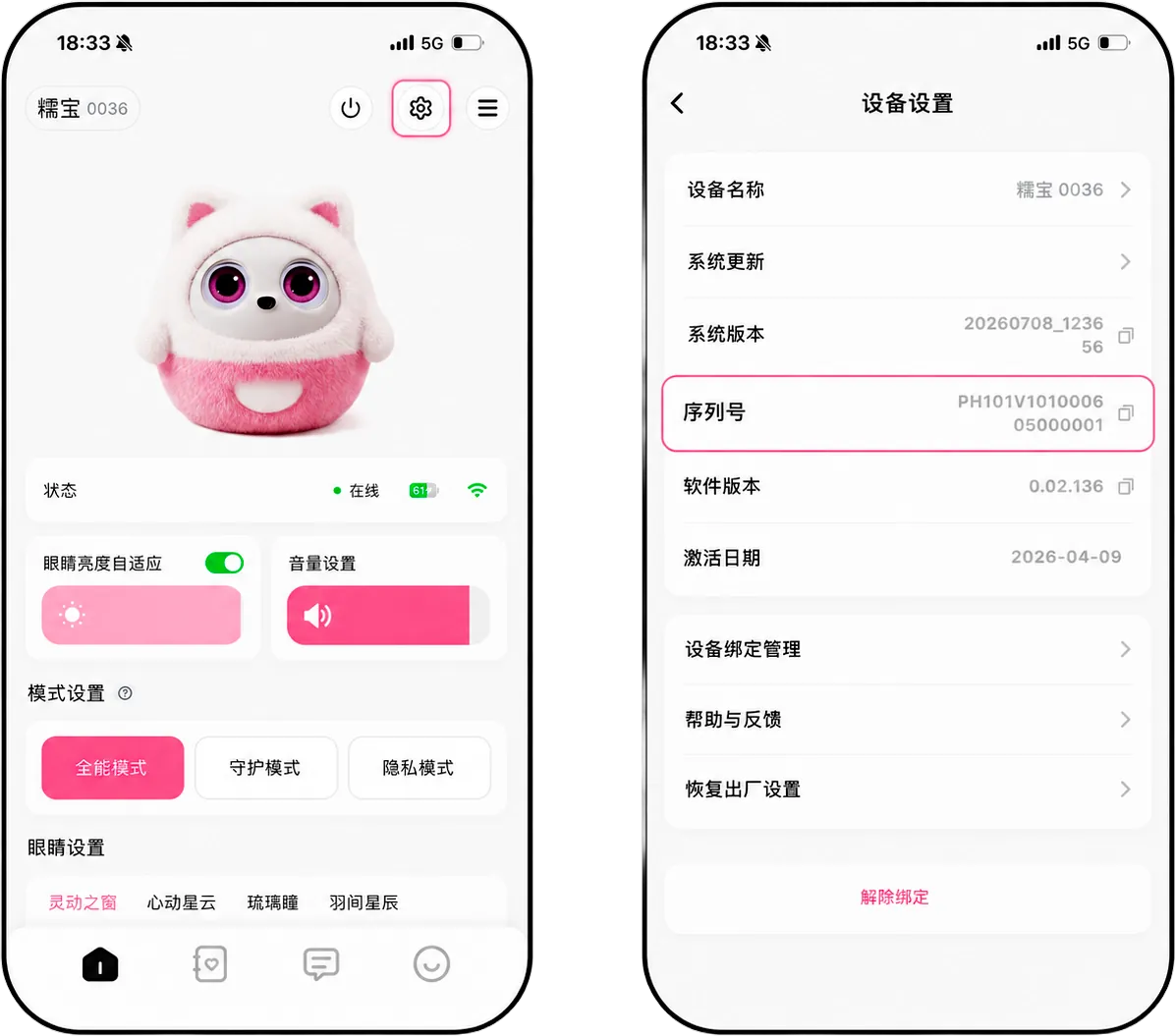
8.9 Finding the Serial Number (SN)
The serial number is used for pairing, after-sales service and troubleshooting — please keep it somewhere safe.
You can find it in three places:
|
|
8.10 Accounts and Sharing
- Owner account: the account that paired her first. It has full management rights over her.
- Shared account: invited by the owner. It can use her day to day, but cannot change the network or the device name, run firmware updates or perform a factory reset.
- How to share: the owner generates an invite code in "Share Management" in the App → the other person taps "Add a Shared Pophie" in their App and enters it. No new Wi-Fi setup needed.
*Note: entitlements follow Pophie herself, not the account; shared members can use whatever she already has.
- Handing her to someone else: if you are selling her or giving her to someone outside the family, run a "Restore factory settings" first and let her new family pair her. Deleting the App or signing out does not unpair her.
Account details: to find your User ID, go to "Profile" in the bottom bar → "Profile" at the top → Personal Information → "User ID"
8.11 The App Says She's Offline
- Check that the networks on both Pophie and your phone are working with a good signal
- Move Pophie closer to the router and restart the App (the online status can lag a few seconds right after the App opens — give it a moment)
- Restart Pophie and check again
- Try a different network; if she can't be found on the new one, restart her first
8.12 Getting Help
Whatever comes up, reach us through Support Chat in the App: "Profile" in the bottom bar → "Support Chat".
8.13 Expression Style and Blocked Words
Expression Style settings
In the App, go to "Device Settings" → "Expression Style" to choose how Pophie talks with you.
- Family-Friendly: Pophie avoids crude language and anything unsuitable for a family setting.
- Natural: Pophie expresses herself in a more natural, richer way, including a more direct tone, humour or light teasing.
*Note: if you haven't chosen one, Pophie uses "Family-Friendly" by default.
Blocked Words settings
The owner account can add up to 100 blocked words to keep specific content out of Pophie's replies. Blocked words only affect Pophie's replies from then on; they don't affect what users type and don't delete past chat history. Use complete words or phrases, as very short words may block more than you intend.
8.14 App Chat (IM)
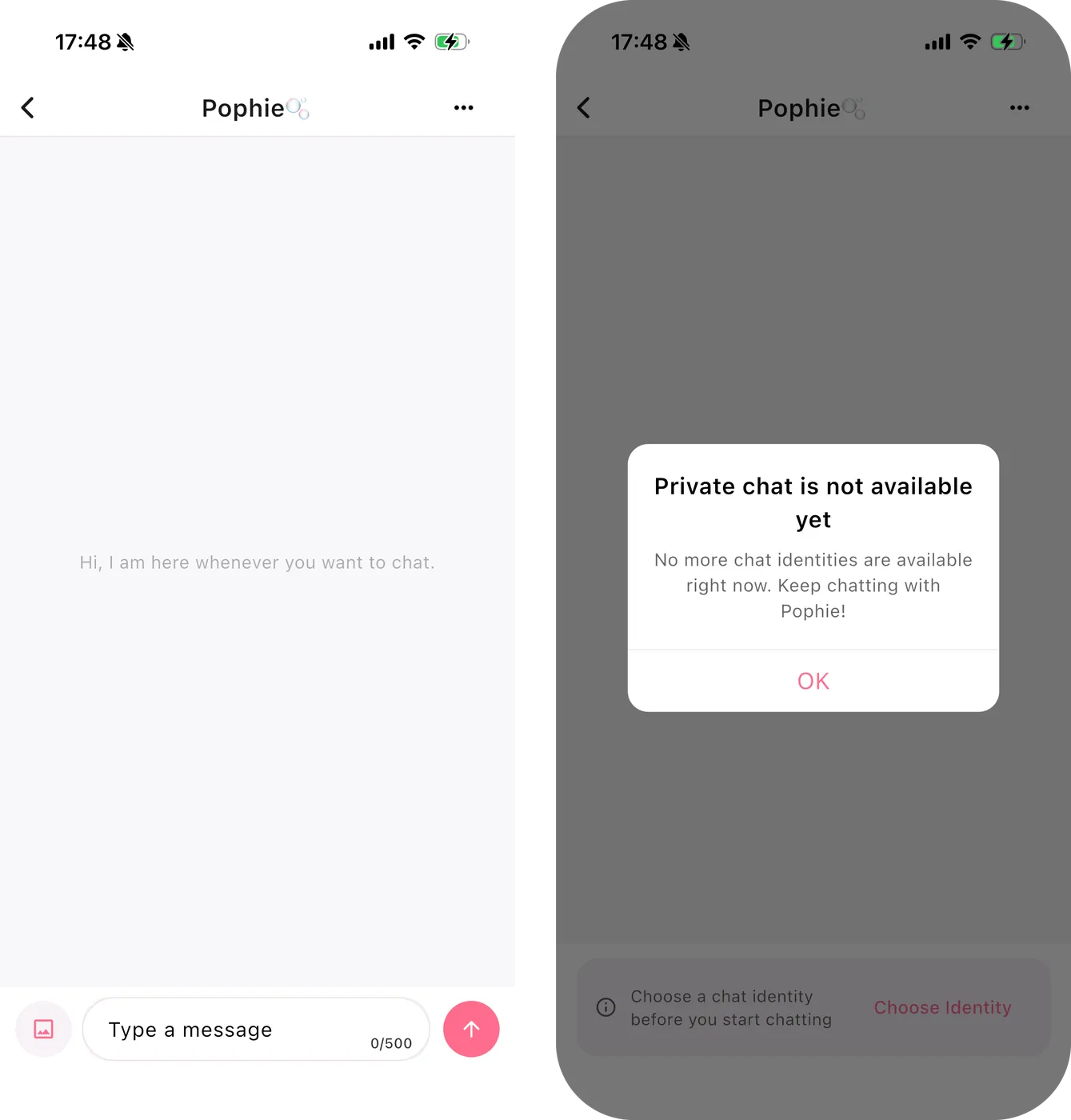
Pro users only. Open "Messages" at the bottom of the App and choose Pophie to chat by text or send a photo with a question. You can chat even when Pophie herself is offline or not with you; your phone needs an internet connection.
First use: pair Pophie first, then confirm your chat identity; if you already have a valid identity from writing replies to her letters, you can keep using it. Once confirmed, the identity can't be changed. If Pophie calls you by the wrong name, ask the device admin to correct it in the App under "Device Settings" → "People Pophie Knows". If you're told there is no identity to choose yet, chat more with Pophie herself first, then come back and try again.
Sending messages: each text message can be up to 500 characters; tap the image button to pick a photo from your album — one photo per message, and it must come with a text question.
History and memory: the App and Pophie herself share important memories, but their chat histories are stored separately. Long-press a text message to copy or delete it; use "⋯" at the top right to clear the chat, but this doesn't delete long-term memories she has already formed. If a message fails to send, check your network and retry manually.
|
|
9. Subscription and Renewal
Checking benefits: see Pophie's current subscription and its validity period in the App under "Device Settings" → "Subscription Benefits".
Subscribing: sign in on the Pophie Membership page of the Pophie website, choose a linked, activated Pophie, then choose Standard or Pro and monthly or yearly billing, confirm and complete payment. Prices vary by region; the checkout page shows the final amount.
After paying, keep Pophie switched on and online, then check her benefits in the App. If they haven't arrived, send us your order number and the device SN through "Profile" → "Support Chat".
Renewal: subscriptions renew automatically until cancelled. You can update your payment method, view invoices or cancel automatic renewal at any time in subscription management in your website account. Complimentary and previously purchased membership time remains valid; once all benefits have expired, Pophie returns to Free, and her existing memories and any Eye Collections you have bought stay with her.
10. Changing Her Outfit
Pophie's plush outfit is made from a high-quality stretch plush fabric. Follow the steps below to dress her in something new.
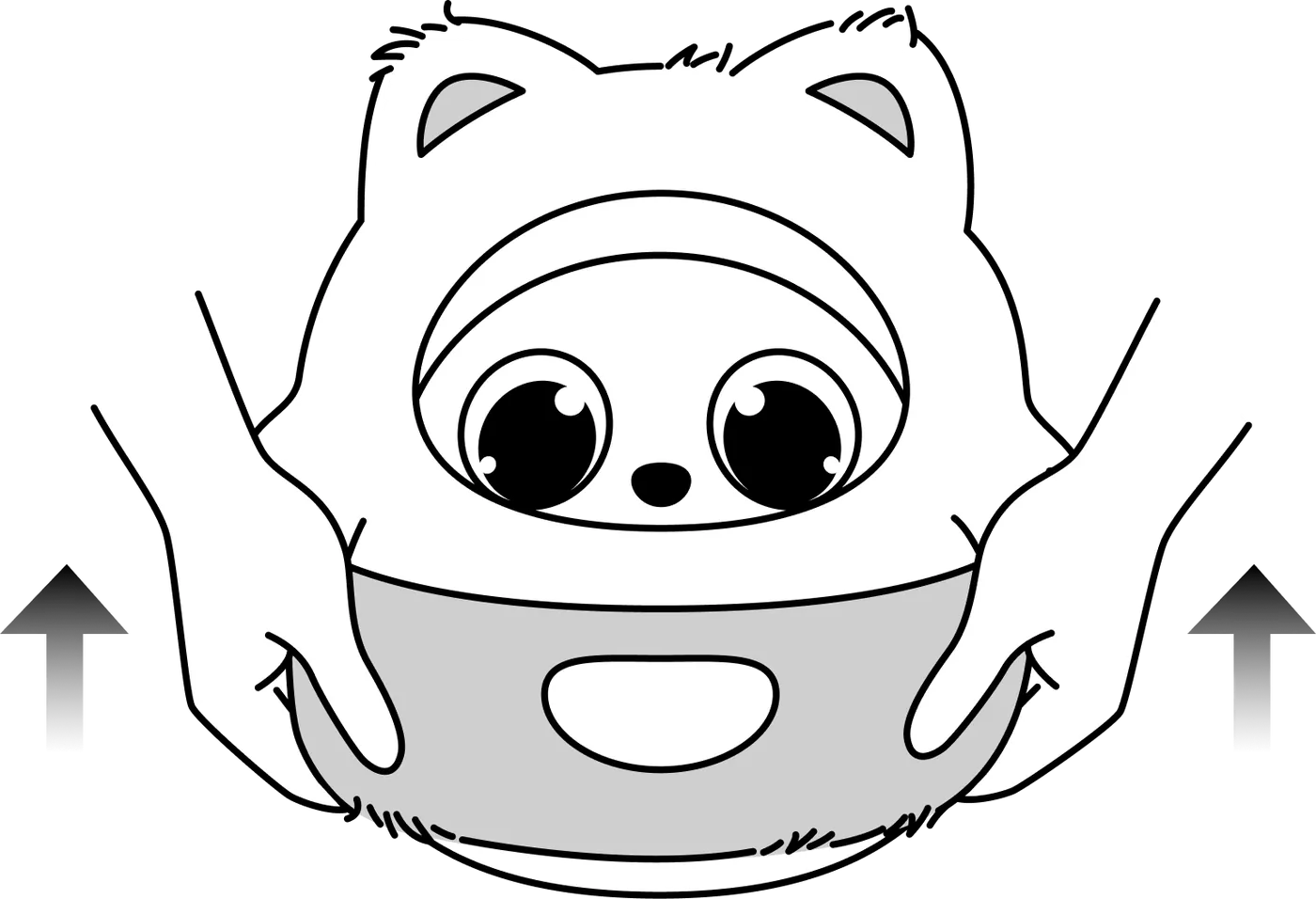
| STEP 01. Take it off Gently pull the current plush outfit up and off from the bottom. |
|
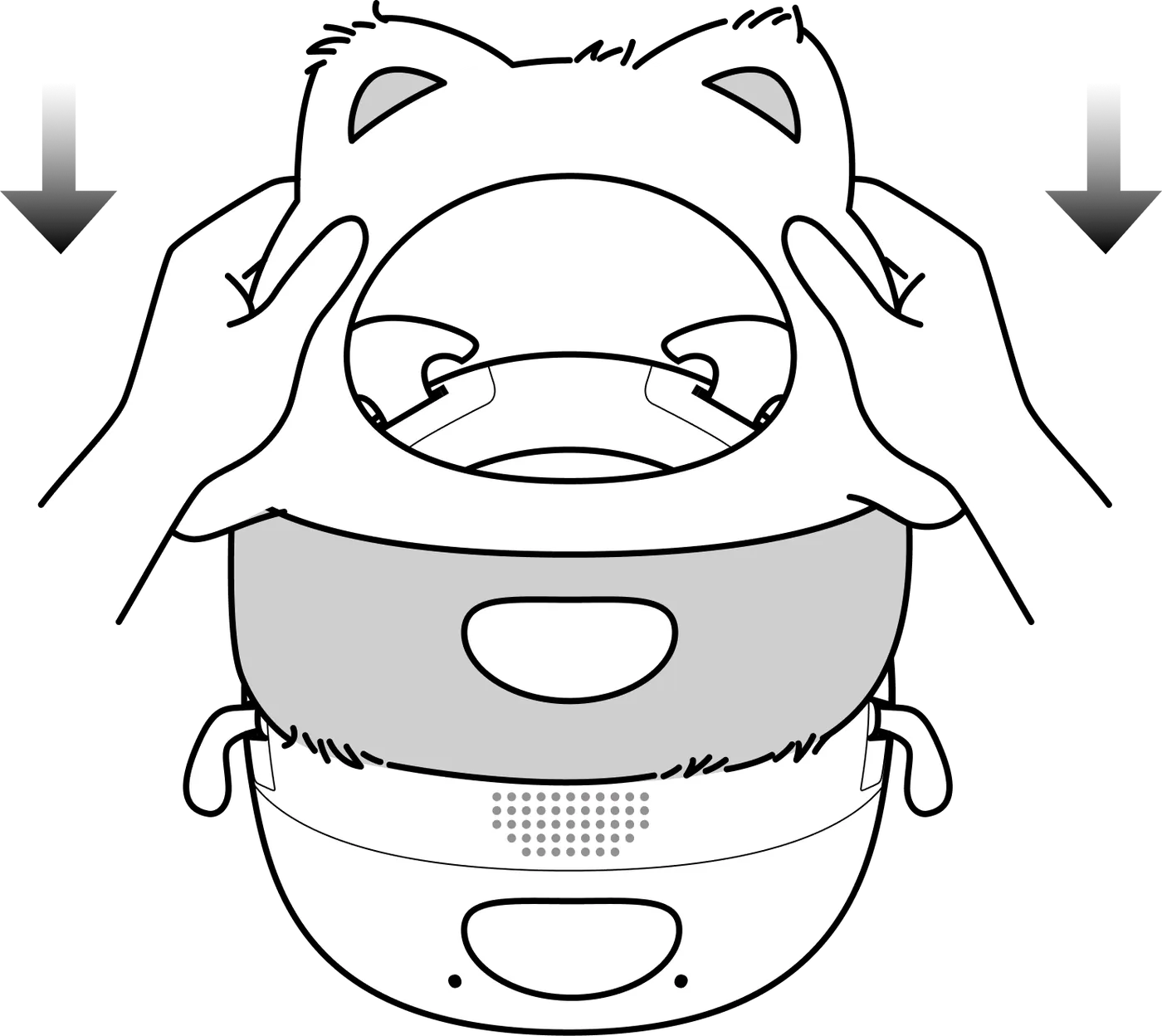
| STEP 02. Put it on Start at the top of her head and pull the new outfit down over her body, the way you would put on a jumper. |
|
| STEP 03. Settle it Feed her ears and hands through their openings, then adjust them so the outfit sits smoothly against her body. |
|
| STEP 04. Check Tidy the edge around her face. Make sure the breathing light is fully uncovered and the halo shows clearly. |
|
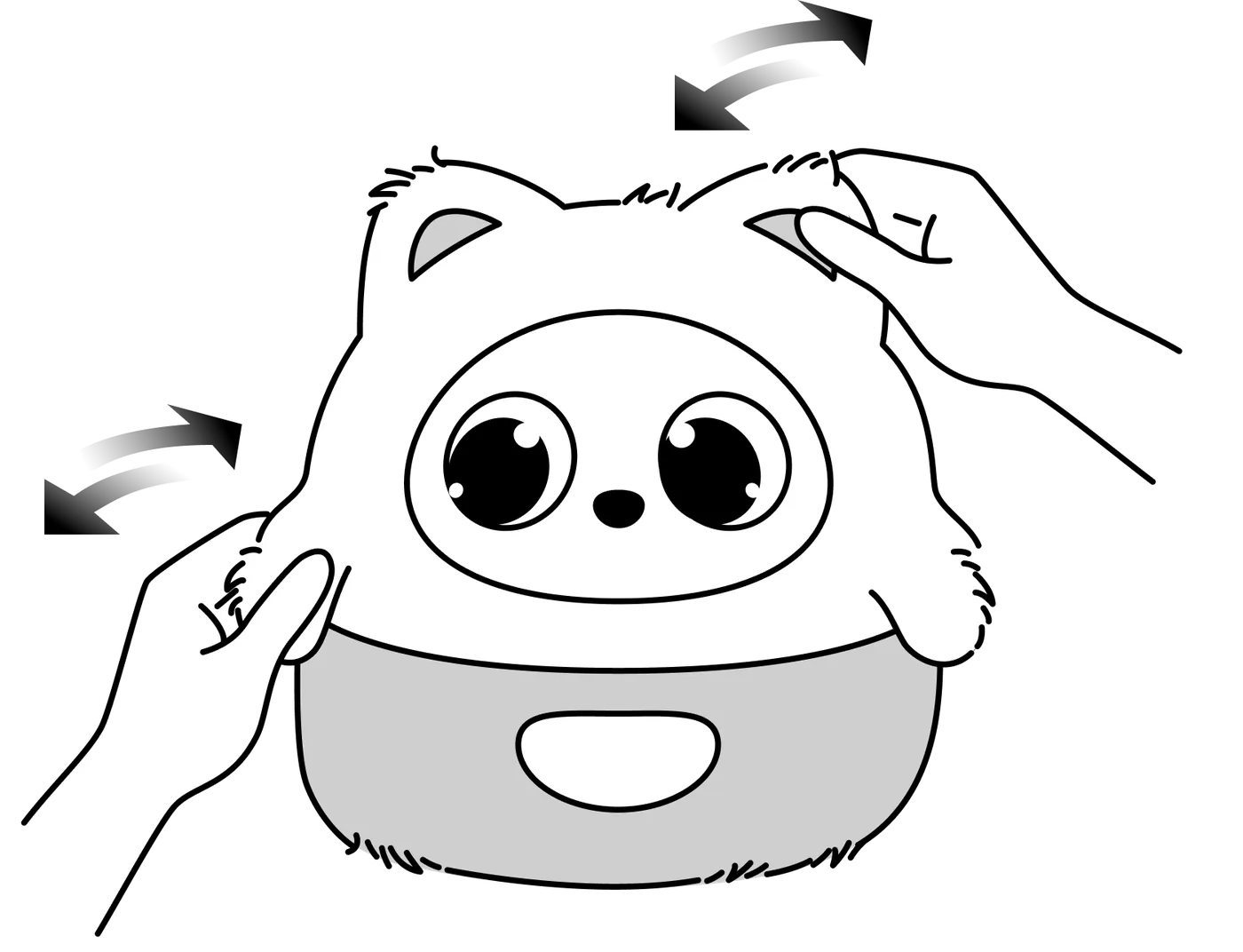
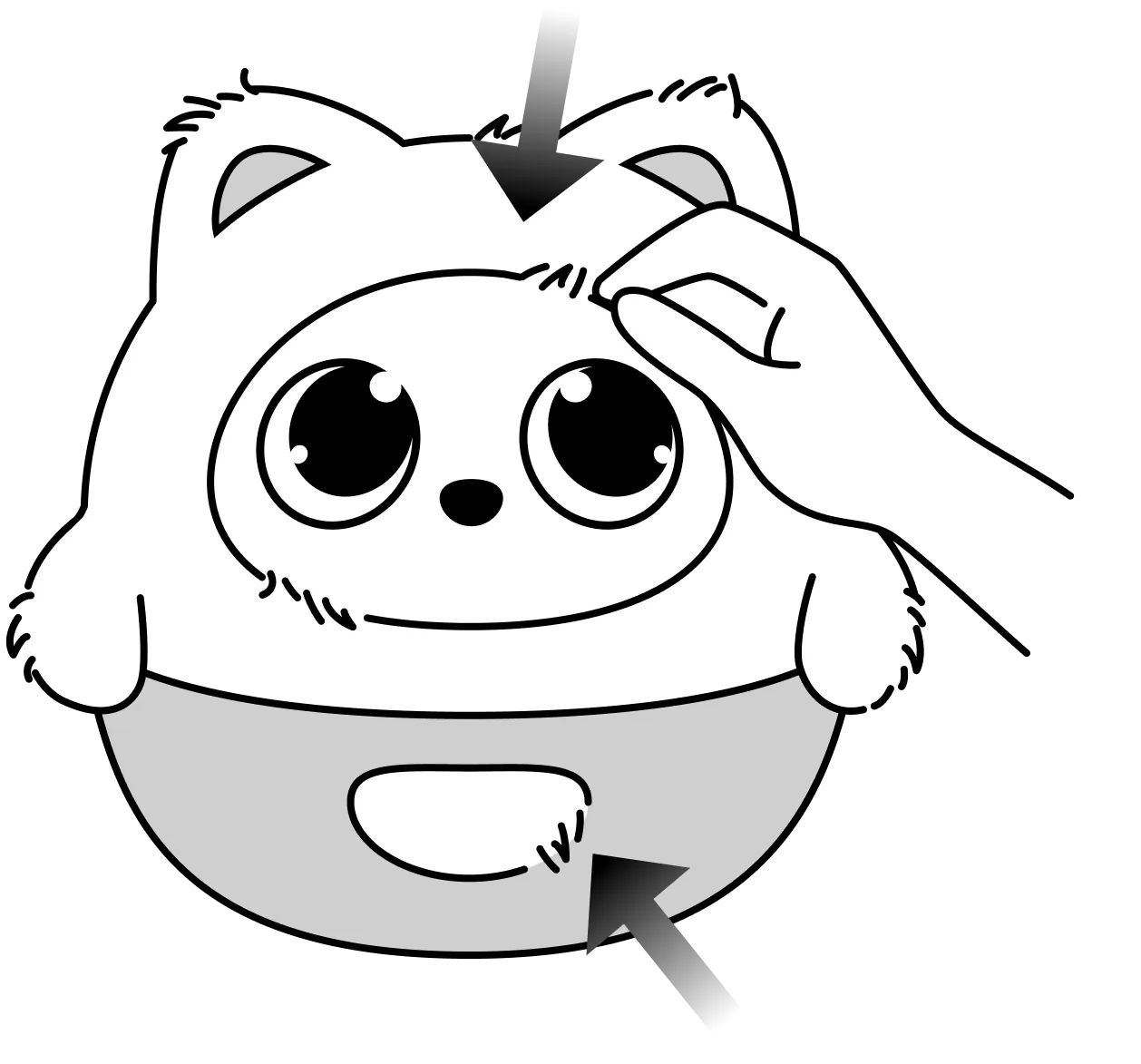
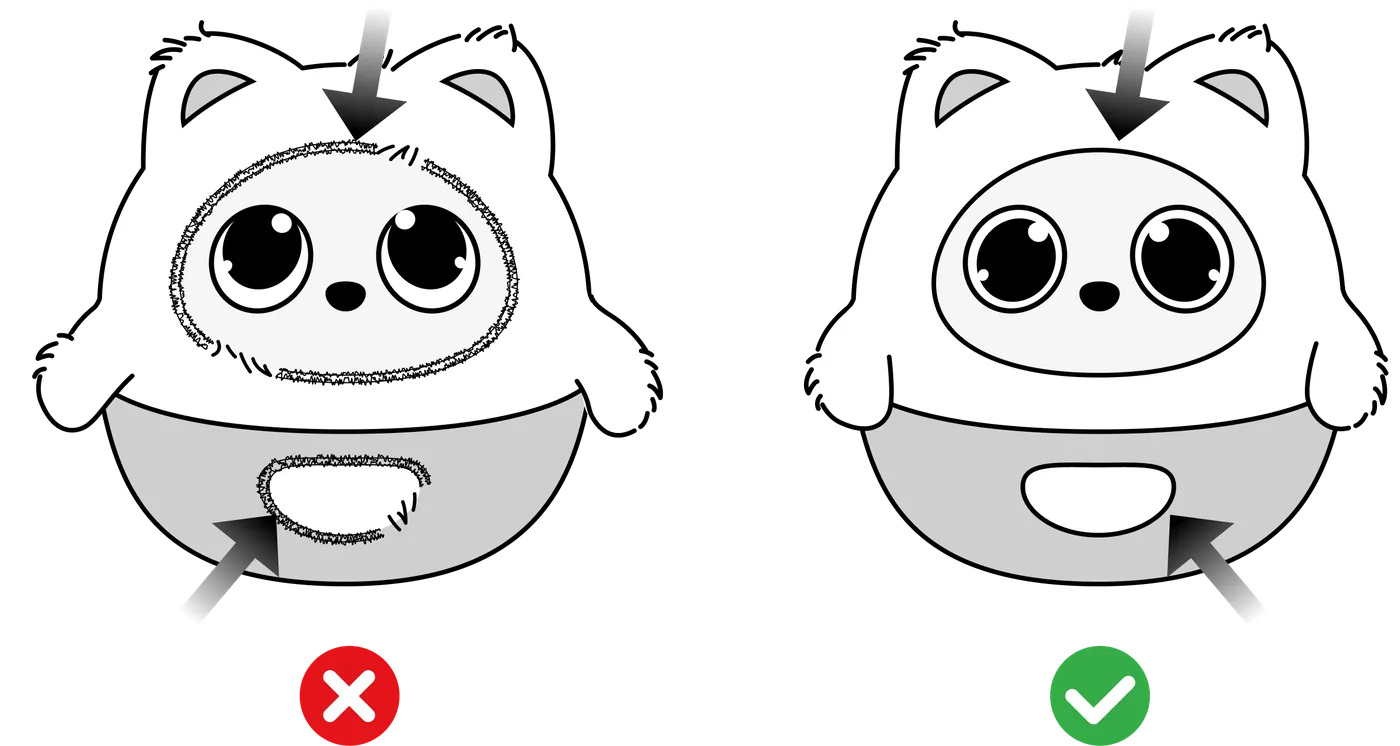
Once she's dressed, check these three things:
- Her ears and hands are all the way through their openings and not pressing against the lining
- The plush around her face is tucked inward, and the breathing light is completely uncovered
- The outfit fits closely but isn't tight
| ❌ Not right: loose plush edges hanging out over her face, and a frayed edge folded back over the breathing light ✅ Right: a clean, complete face outline, a tidy opening for the breathing light, and a clearly visible halo |
|
*Note: an outfit that is too tight or not fully in place can restrict a limb and make her movements louder. When a movement meets resistance, Pophie may trigger a protective stop and pause moving for a moment. If an arm or an ear doesn't move freely, first check whether the outfit is caught or something nearby is in the way, then take the outfit off and check whether it goes back to normal; never force her arms or ears into position.
Caring for the Plush Outfit
- Washing: the plush outfit may only be hand washed, after you take it off. Use cold water no warmer than 30°C, soak it for no more than 15 minutes, and use a gentle, neutral, plant-based, low-foam, alkali-free detergent. Never machine wash, tumble dry, iron, dry clean or bleach it; let it air dry naturally somewhere shady and well ventilated, out of direct sunlight. Once it is completely dry, gently brush the plush to fluff it back up. These steps apply only to the plush outfit once it is removed — her body must never be washed or soaked.
- Loose fibres: a few loose fibres at first are normal; a lint roller lifts them off easily.
11. Status and Care
11.1 Status Indicators
| Software update: while Pophie is updating her system, the breathing light glows in rainbow colours. Please keep her plugged in throughout. |
|
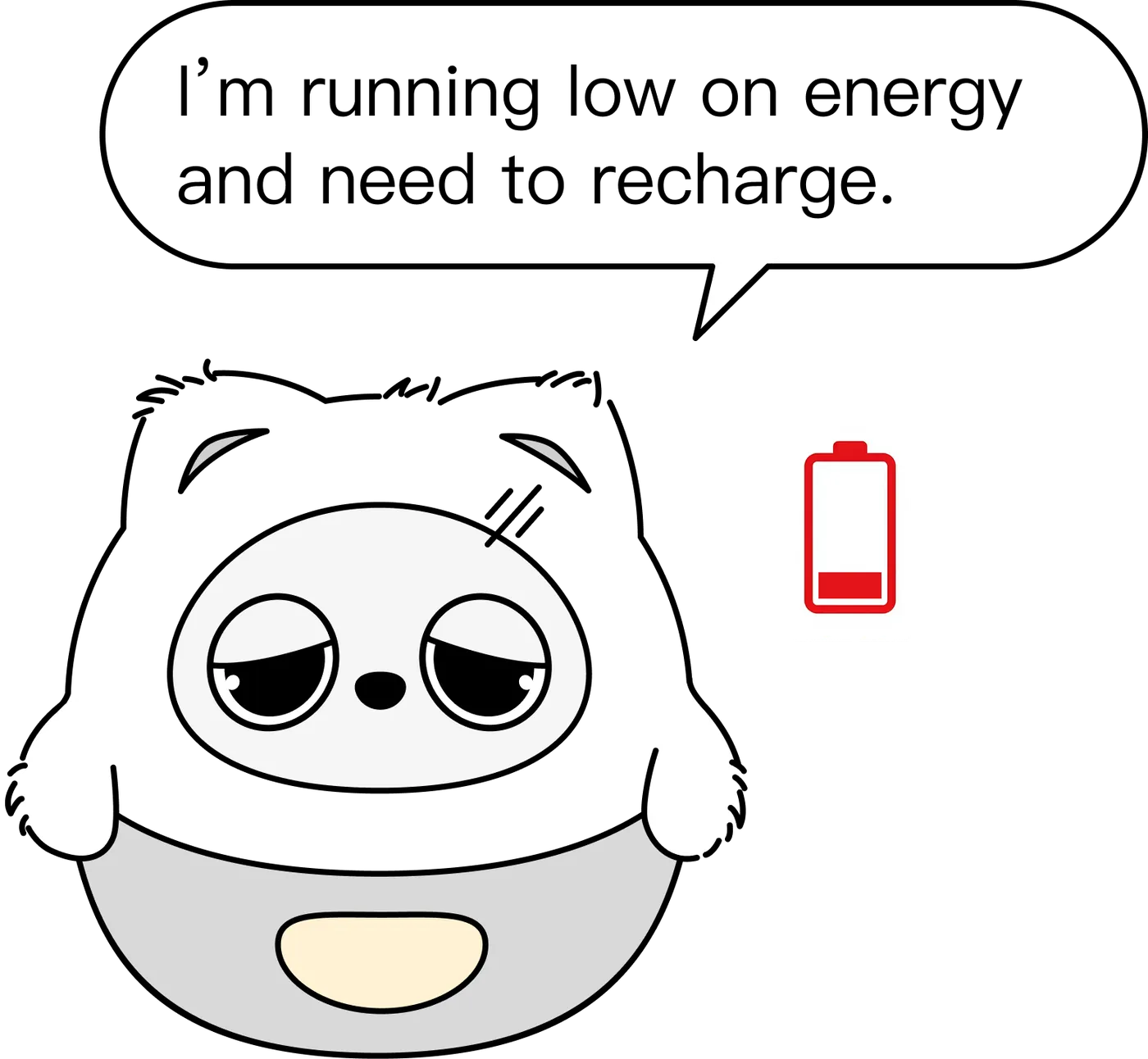
| Low battery: when the battery drops to 20%, her body movements are limited and the breathing light turns orange; once she is charged back to 25%, her body movements return. |
|
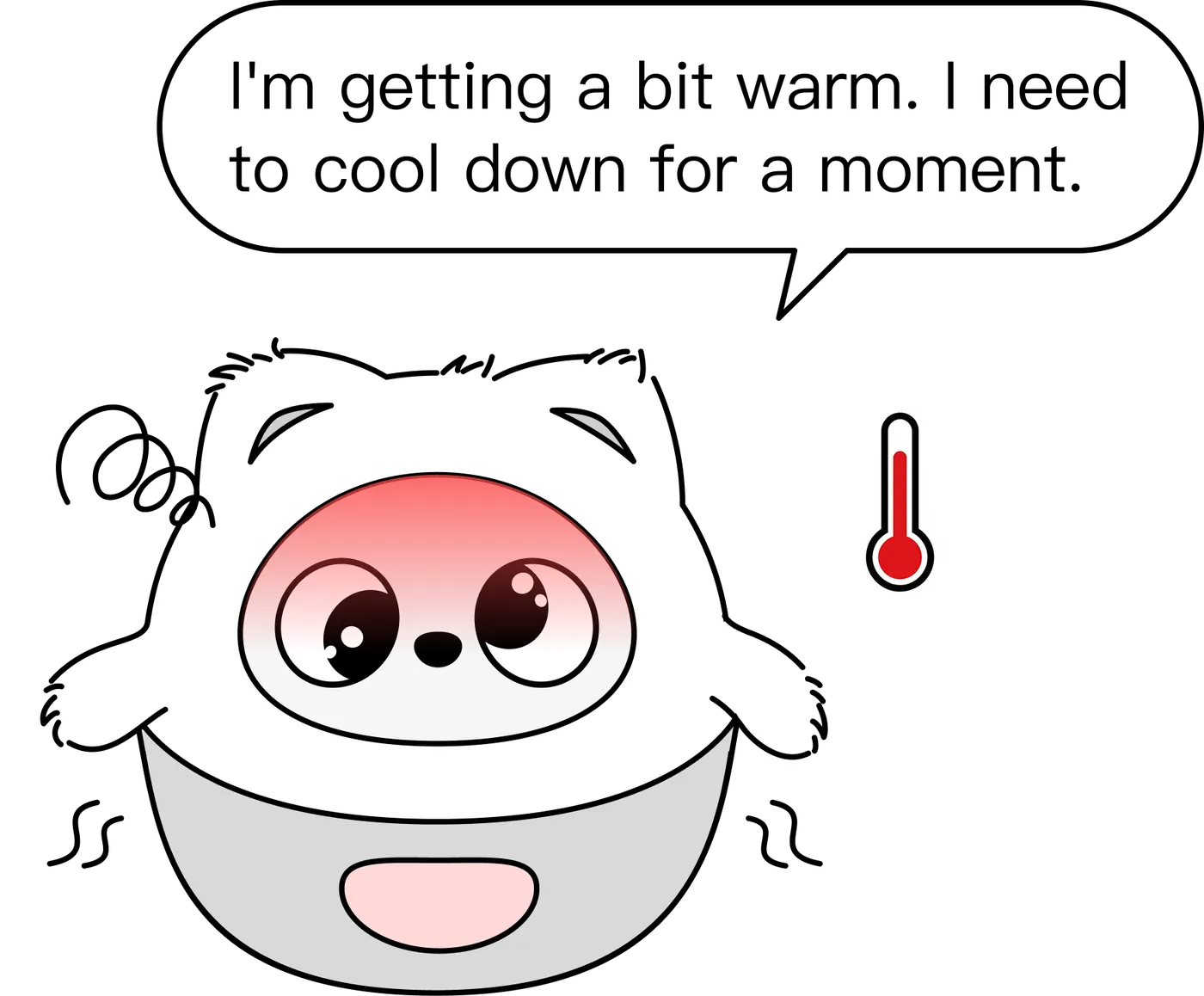
| Too warm: the breathing light turns red and she goes to sleep. Make sure nothing is blocking the vents underneath and leave her somewhere airy until she recovers. |
|
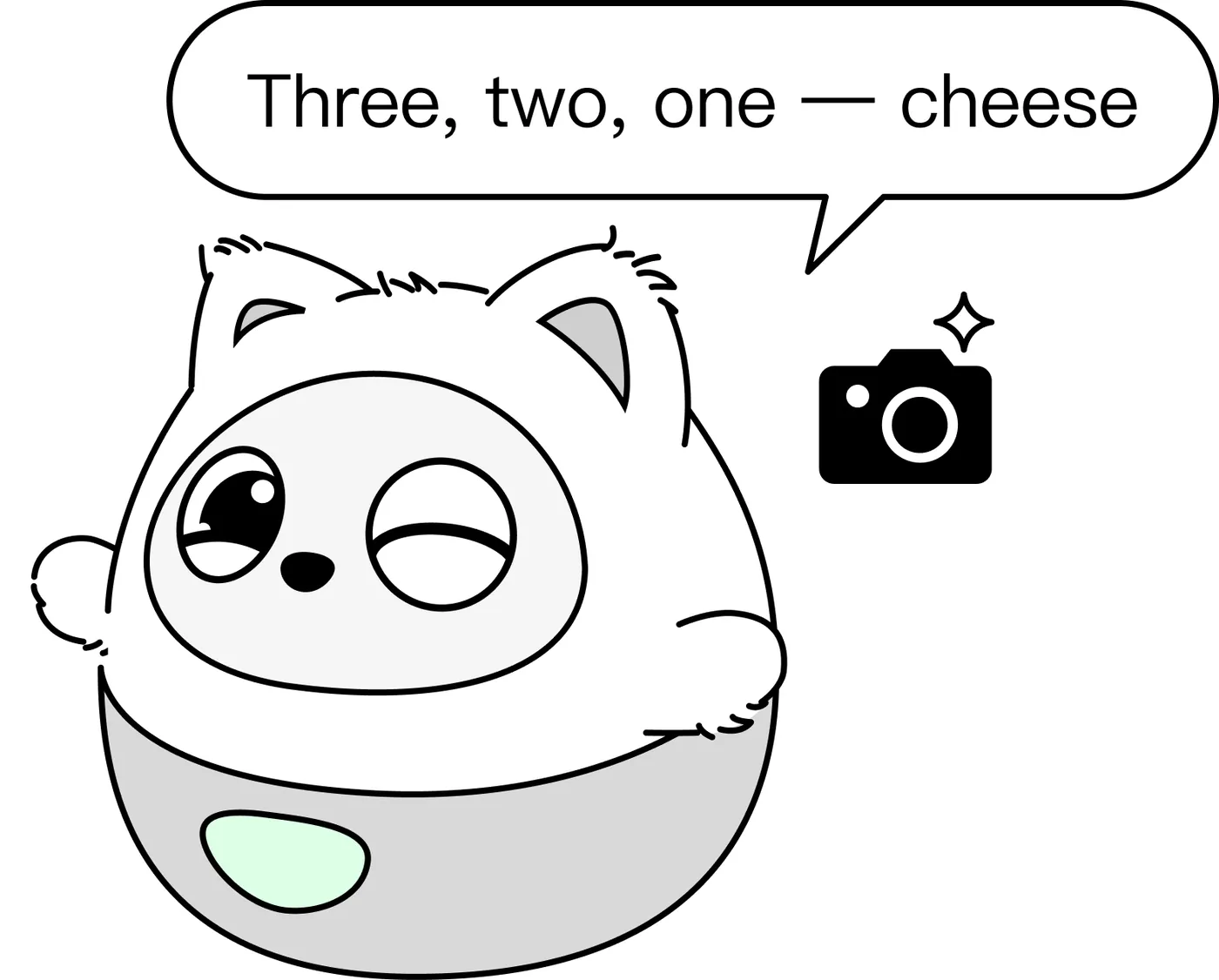
| Taking a photo herself: when Pophie takes a photo on her own, the breathing light turns green *Note: status indicators only appear while you are interacting with her. |
|
| Full mode: the breathing light is your custom colour — say "make your light blue" to change it. This applies to Full mode only. |
|
| Guardian mode: the breathing light turns pink; no conversation, only instinctive reactions and movement. |
|
| Private mode: the breathing light turns purple; all images are blocked and only voice interaction remains. |
|




*Note: system warnings and status indicators (low battery, updating and so on) may temporarily override the colour you set. That is normal.
11.2 Care and Safety
- Cleaning: gently wipe the face mask and the body surface with a soft microfibre cloth or sponge dampened with a little clean water or a mild, neutral detergent. Never use alcohol, acetone, thinners, harsh corrosive cleaners, rough cloths or steel wool, and don't scratch the face mask or the edge of the camera with your fingernails or anything hard. Wipe the screens and lens with a dry microfibre cloth only.
- Environment: the ideal operating temperature is 0°C–40°C. Keep Pophie from prolonged contact with sweat, oils, face cream, sunscreen and perfume; don't leave her in a hot car or in direct sunlight, and don't keep her together with hard objects such as keys and coins.
- Water: this product is not waterproof; keep her away from water.
- Drops: there is a precision gearbox inside, and a fall can cause irreversible damage. Please use her on a flat, solid desk.
12. Product Safety and Compliance
This device complies with Part 15 of the FCC Rules. Operation is subject to the following two conditions:
- this device may not cause harmful interference; and
- this device must accept any interference received, including interference that may cause undesired operation.
Any changes or modifications not expressly approved by the party responsible for compliance could void the user's authority to operate the equipment.
Note: This equipment has been tested and found to comply with the limits for a Class B digital device, pursuant to Part 15 of the FCC Rules. These limits are designed to provide reasonable protection against harmful interference in a residential installation.
This equipment generates, uses and can radiate radio frequency energy and, if not installed and used in accordance with the instructions, may cause harmful interference to radio communications.
However, there is no guarantee that interference will not occur in a particular installation.
If this equipment does cause harmful interference to radio or television reception, which can be determined by turning the equipment off and on, the user is encouraged to try to correct the interference by one or more of the following measures:
- Reorient or relocate the receiving antenna;
- Increase the separation between the equipment and receiver;
- Connect the equipment into an outlet on a circuit different from that to which the receiver is connected;
- Consult the dealer or an experienced radio/TV technician for help.
This device has been evaluated to meet general RF exposure requirements. The device can be used in portable exposure conditions without restriction.
The FCC ID is on the body of the product and becomes visible once the plush outfit is removed.